
Skip to content
IT help

IT help

IT help for students at Hasseris Gymnasium

  • Guides
    • Unilogin
    • Lectio
    • Print
    • WIFI
    • Maple
    • Backing up data
  • Frequently asked questions
  • Preparing your computer
  • My first day of school

New student

5
  • Log in to Lectio without MitID (required for exams)
  • Update your computer
  • Change / forgot password
  • MacBook automatic installation
  • MacBook or PC?

Local login

3
  • Log in to Lectio without MitID (required for exams)
  • Change / forgot password
  • What is Local login?

LECTIO

2
  • Log in to Lectio without MitID (required for exams)
  • Change / forgot password

PRINT

4
  • Pairing student cards with copiers
  • Student: Installing the print driver on MacBook
  • ELEV: Installing the print driver on Windows PC
  • I can't save my Maple task as PDF (MacBook)

WIFI

2
  • Log on to WIFI (Windows)
  • Log on to WIFI (MacBook)

Update your computer

2
  • Update your Windows PC
  • Update your MacBook

Microsoft 365

4
  • Microsoft Teams
  • Backing up OneNote on MacBook
  • Restore OneNote from backup on Mac
  • Microsoft 365

OneDrive

2
  • Unlink old school in OneDrive
  • OneDrive

Installation

4
  • Install Firmaportal MacBook
  • Install Firmaportal Windows PC
  • Install applications yourself - MacBook (EMERGENCY SOLUTION - not recommended)
  • Install programs yourself - Windows PC (EMERGENCY SOLUTION - not recommended)

Maple

4
  • Installing Maple 2025 Mac/PC
  • Maple activation
  • I can't save my Maple task as PDF (MacBook)
  • Maple - Find lost files

Backing up data

4
  • Backup of OneNote (Windows)
  • Backing up OneNote on MacBook
  • Restore OneNote from backup on Mac
  • Backup of OneDrive

My first day of school

3
  • Log in to Lectio without MitID (required for exams)
  • Log on to WIFI (MacBook)
  • Log on to WIFI (Windows)
  • Home
  • Docs
  • My first day of school
  • Log on to WIFI (MacBook)
View Categories

Log on to WIFI (MacBook)

< 1 min read

Connect to the internet with your Mac

Use Wi-Fi, tethering or Ethernet to connect your Mac to a network that provides access to the internet.

How to connect to a Wi-Fi network

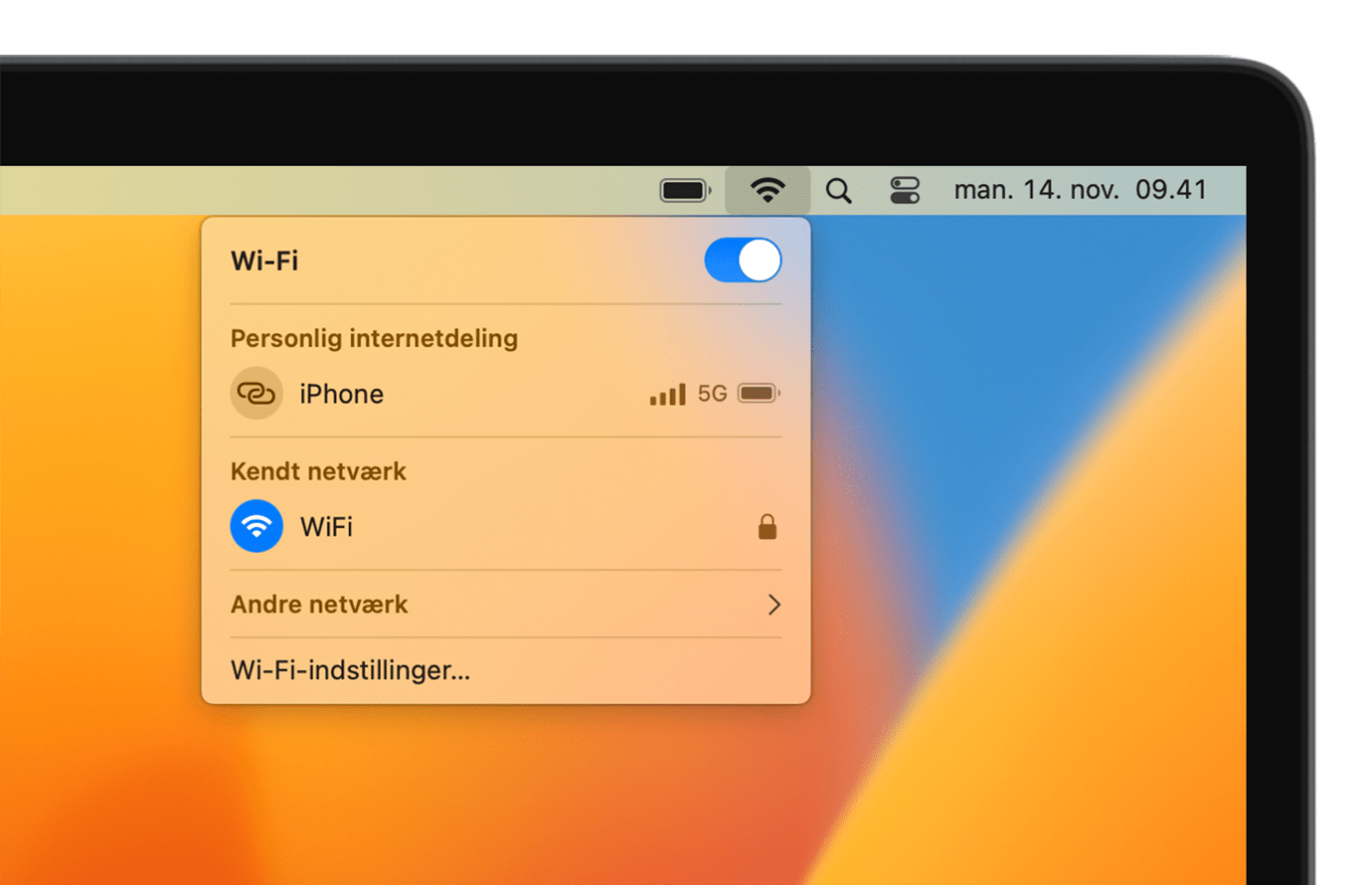
From the Wi-Fi menuNo alt supplied for Image On the menu bar, select "HG". You will be prompted to enter the Wi-Fi network username (UNI-LOGIN) and password (UNI-LOGIN).
No alternative for image is provided


Was the guide useful?
Updated on 04/08/2025
Log in to Lectio without MitID (required for exams)Log on to WIFI (Windows)

Write a reply Cancel reply

Your email address will not be published. Required fields are marked with *.

  • Dansk