This guide consists of 4 parts:
1. Install print driver and find your personal PIN code.
2. Check installation is correct
3. Test printout from Word
4. Pair your student card with copiers for future use.
Install printdriver
To install a print driver on your Windows PC, log in to https://hasseris-gym.eu.uniflowonline.com via your browser with your school email and Unilogin code.
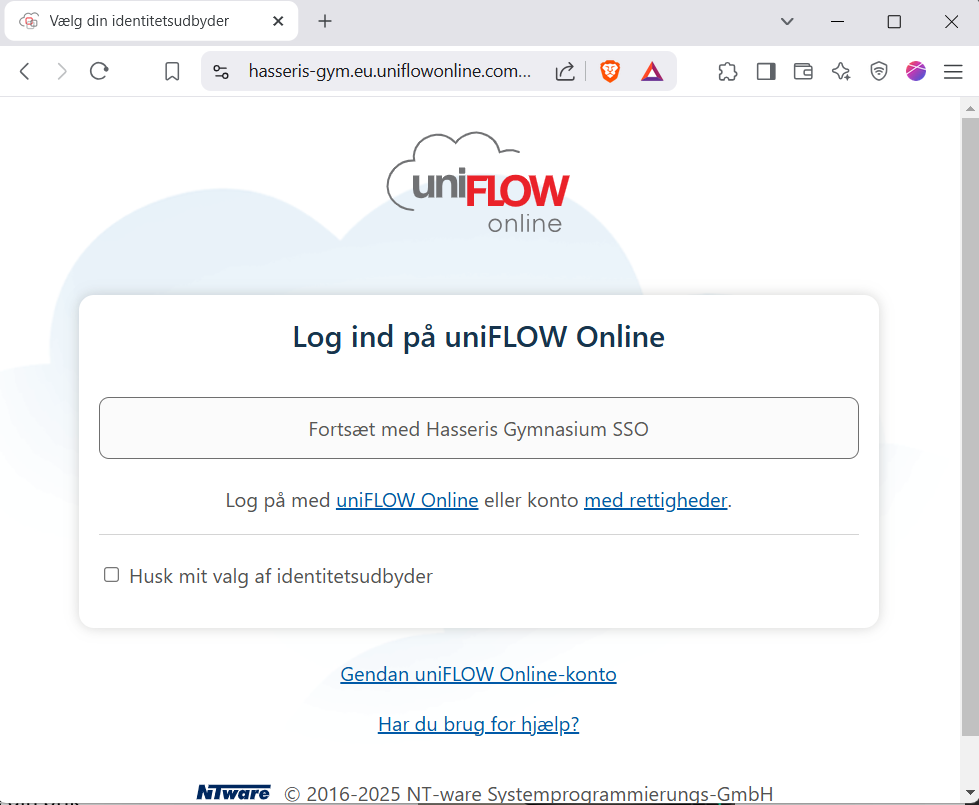
SSO means Single Sign On and that you will be logged in automatically if you use Microsoft Edge and are logged into the browser with your school email.
PIN code:
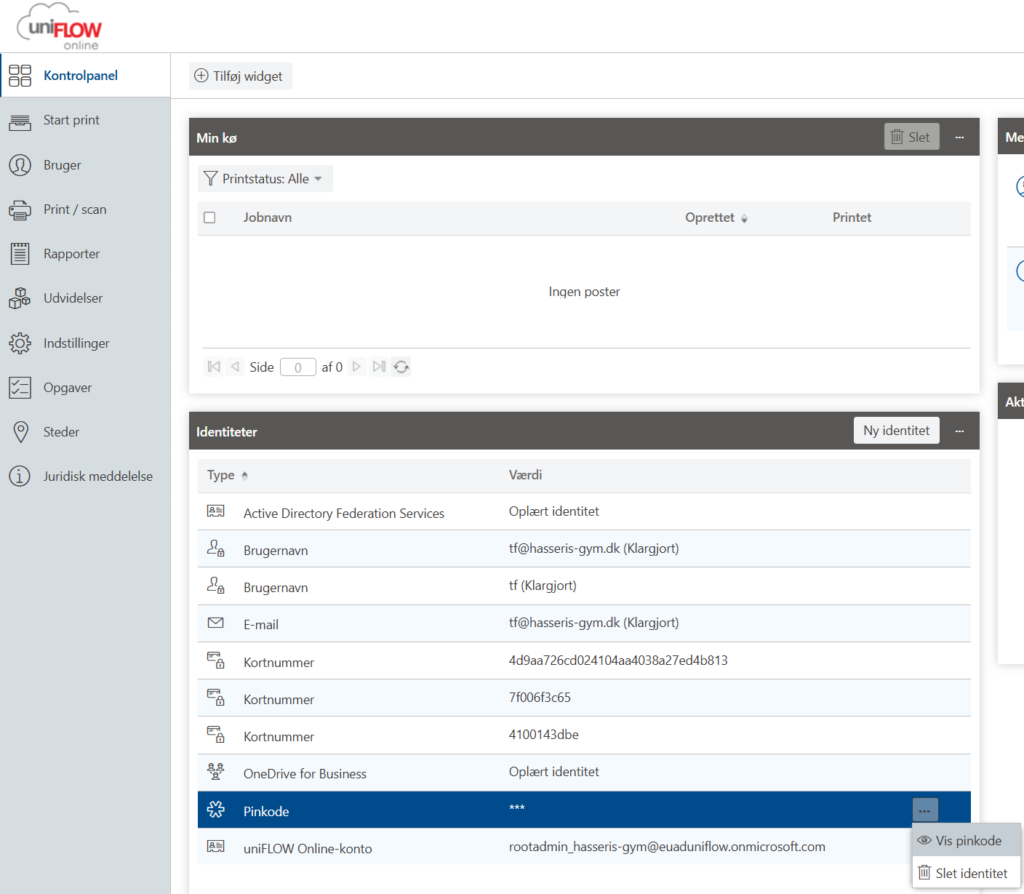
When you are logged in, you can also find your PIN code which is used to pair your student card with the print solution. PIN code can be found under "Identities -> PIN code" by clicking on the 3 dots and "Show code"
Now you need to download the print driver.
Select "Start printing" in the menu to the left of the screen
Under "Install Print Drivers", select Windows x64 Windows PC Student Printer" and download it
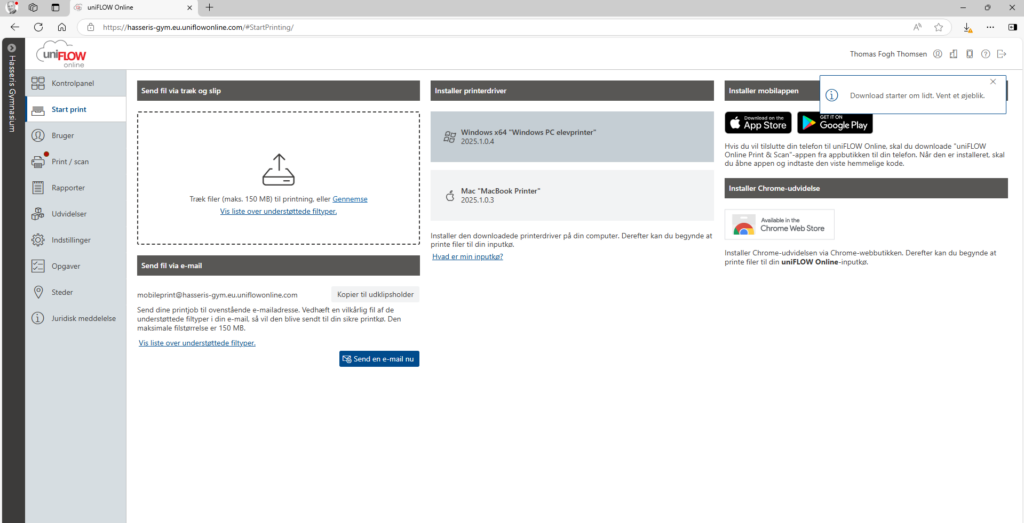
If they are greeted by a dialog box on the left of the screen, select "Keep" to download the print driver to your computer.
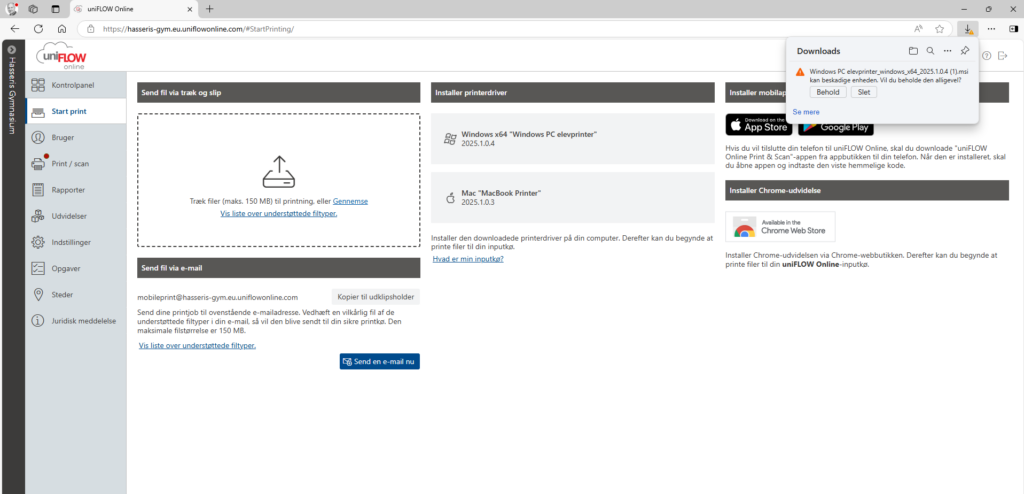
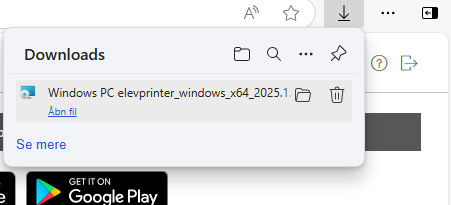
When the download is complete, click "Open file"
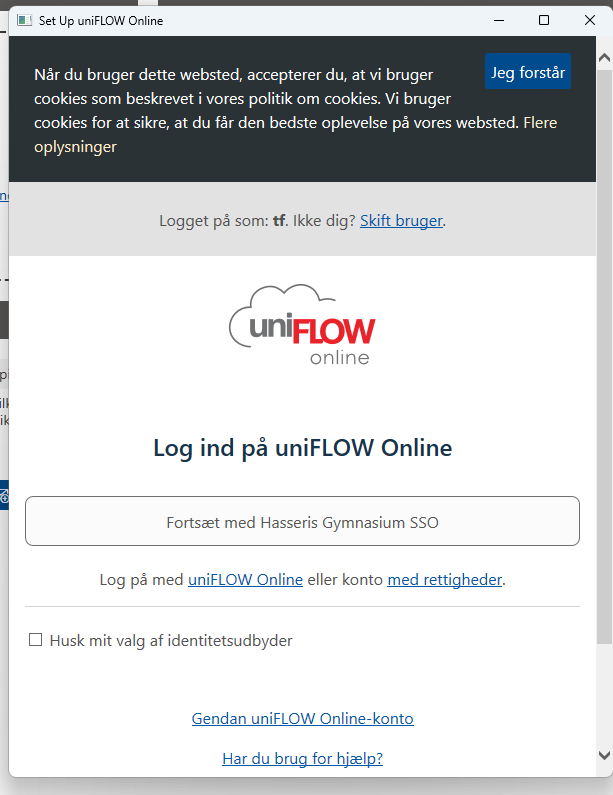
When installing the print driver, you will be greeted with a dialog box where you need to make sure that your school email and code are used, otherwise you will not be able to print.
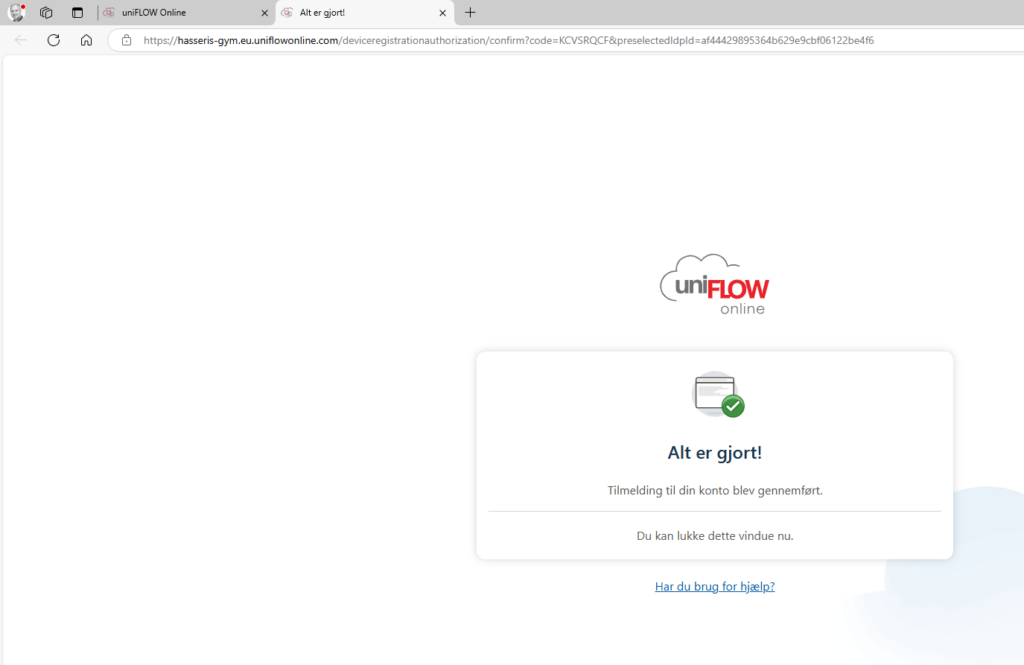
Finally, you will see your browser display "All done" and you are done installing the print driver.
Now you need to restart your computer and proceed to step 2 next
2. Check installation
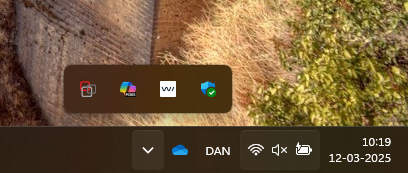
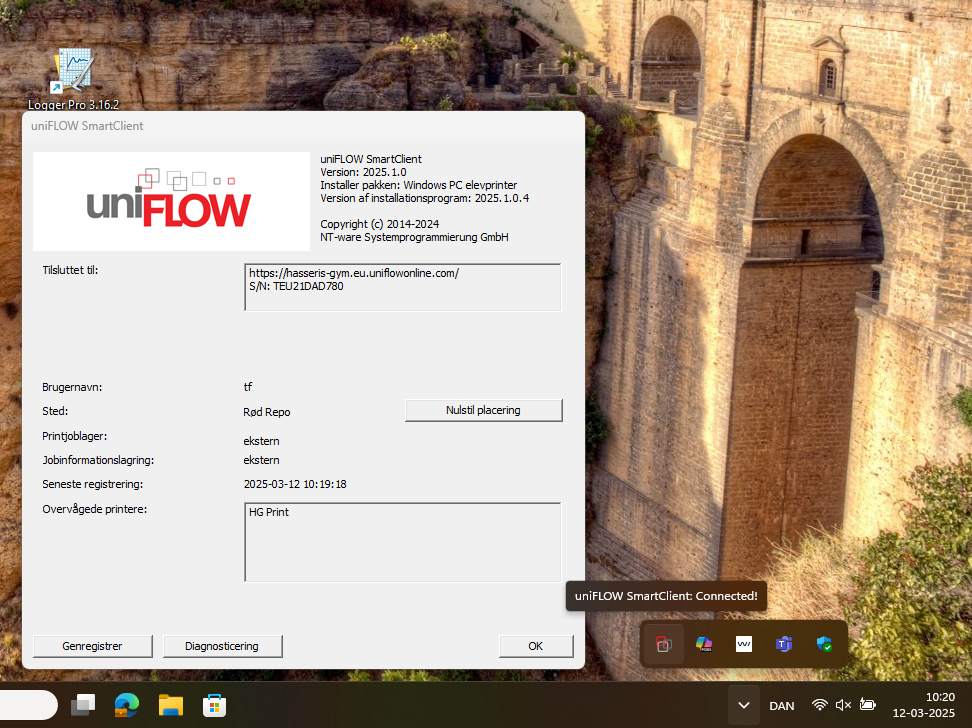
After restarting, you can check that everything is as it should be. Click the up arrow in the bottom right of the process bar. Double-click the Uniflow Online icon (shown below to the far right in the pop up).
Here you should see that "username" is your school email and "Monitored printers" contains "HG Print". If not, either try the wizard again or contact IT support.
Test printout from Word
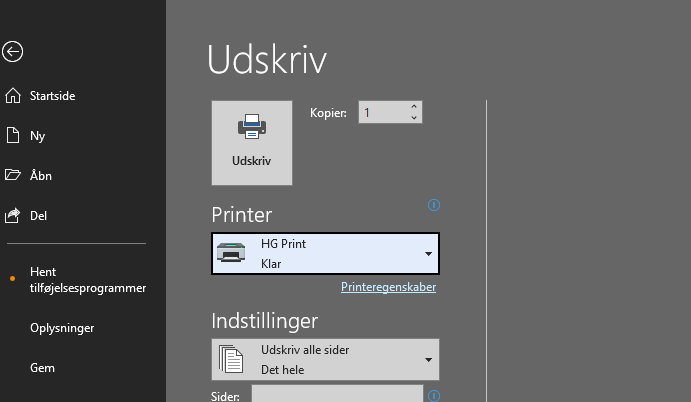
The first time you print from an application, remember to select your correct print driver. You need to select "HG Print".
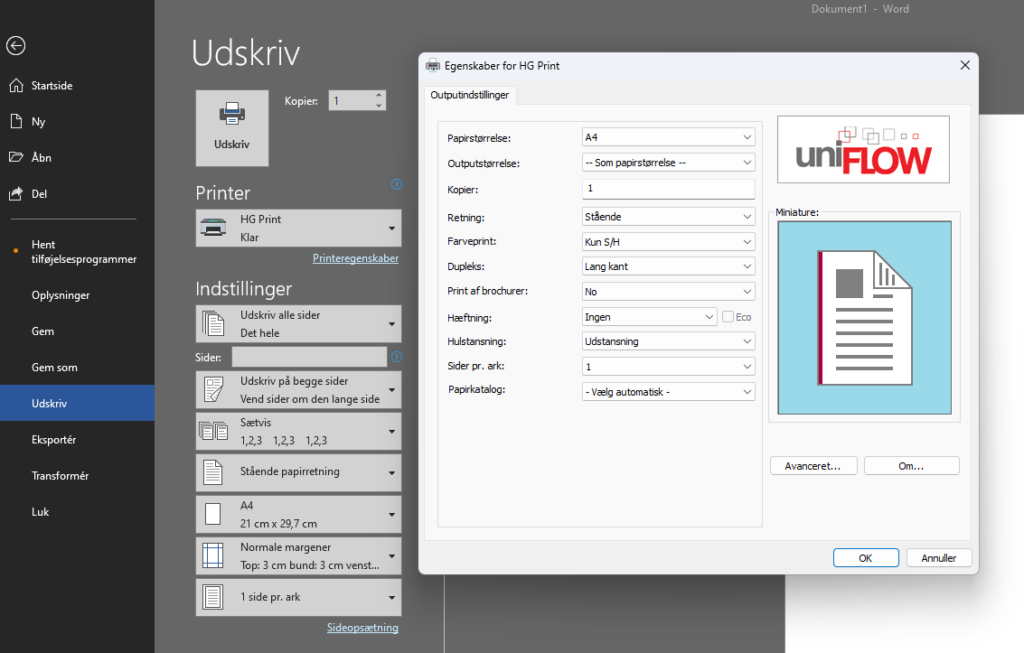
If you want further customization before printing, click "Print properties" under "Printer". Here you can change color, stapling, hole punching etc.
Pairing student cards on the printer
For this task, you need the PIN code that you found in step 1.
Until March 27, 2025, when we have all new copiers in house, you can only do this action on the red landing.
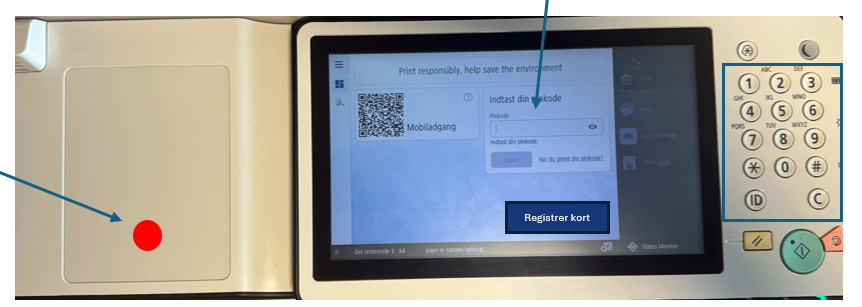
Place your student card on the red circle. Enter your PIN on the keyboard and click "Register card".
Now the card is registered and in the future you can simply place the card on the red circle to log in or out. If you forget your card one day, you can also use the PIN code.