
Skip to content
IT help

IT help

IT help for students at Hasseris Gymnasium

  • Guides
    • Unilogin
    • Lectio
    • Print
    • WIFI
    • Maple
    • Backing up data
  • Frequently asked questions
  • Preparing your computer
  • My first day of school

New student

4
  • Update your computer
  • Change / forgot password
  • MacBook automatic installation
  • MacBook or PC?

Local login

2
  • Change / forgot password
  • What is Local login?

LECTIO

2
  • Log in to Lectio without MyID
  • Change / forgot password

PRINT

4
  • Pairing student cards with copiers
  • Student: Installing the print driver on MacBook
  • ELEV: Installing the print driver on Windows PC
  • I can't save my Maple task as PDF (MacBook)

WIFI

2
  • Log on to WIFI (Windows)
  • Log on to WIFI (MacBook)

Update your computer

2
  • Update your Windows PC
  • Update your MacBook

Microsoft 365

4
  • Microsoft Teams
  • Backing up OneNote on MacBook
  • Restore OneNote from backup on Mac
  • Microsoft 365

OneDrive

2
  • Unlink old school in OneDrive
  • OneDrive

Installation

4
  • Install Firmaportal MacBook
  • Install Firmaportal Windows PC
  • Install applications yourself - MacBook (EMERGENCY SOLUTION - not recommended)
  • Install programs yourself - Windows PC (EMERGENCY SOLUTION - not recommended)

Maple

4
  • Installing Maple 2025 Mac/PC
  • Maple activation
  • I can't save my Maple task as PDF (MacBook)
  • Maple - Find lost files

Backing up data

4
  • Backup of OneNote (Windows)
  • Backing up OneNote on MacBook
  • Restore OneNote from backup on Mac
  • Backup of OneDrive

My first day of school

3
  • Log in to Lectio without MyID
  • Log on to WIFI (MacBook)
  • Log on to WIFI (Windows)
  • Home
  • Docs
  • Backing up data
  • Backup of OneDrive
View Categories

Backup of OneDrive

1 min read

When you stop in 3rd year, you will need to download your files from OneDrive yourself.

It is important that you make a backup BEFORE you leave school. You may find that you can't log in to Office 365 the same day you leave school. 

You can backup in 2 ways:

Backup via web browser

- recommended if you have less than 1 GB of data, but the method supports up to:

  • Individual file size limit: 10 GB
  • Total zip file size limit: 20 GB
  • Total number of files limit: 10,000 

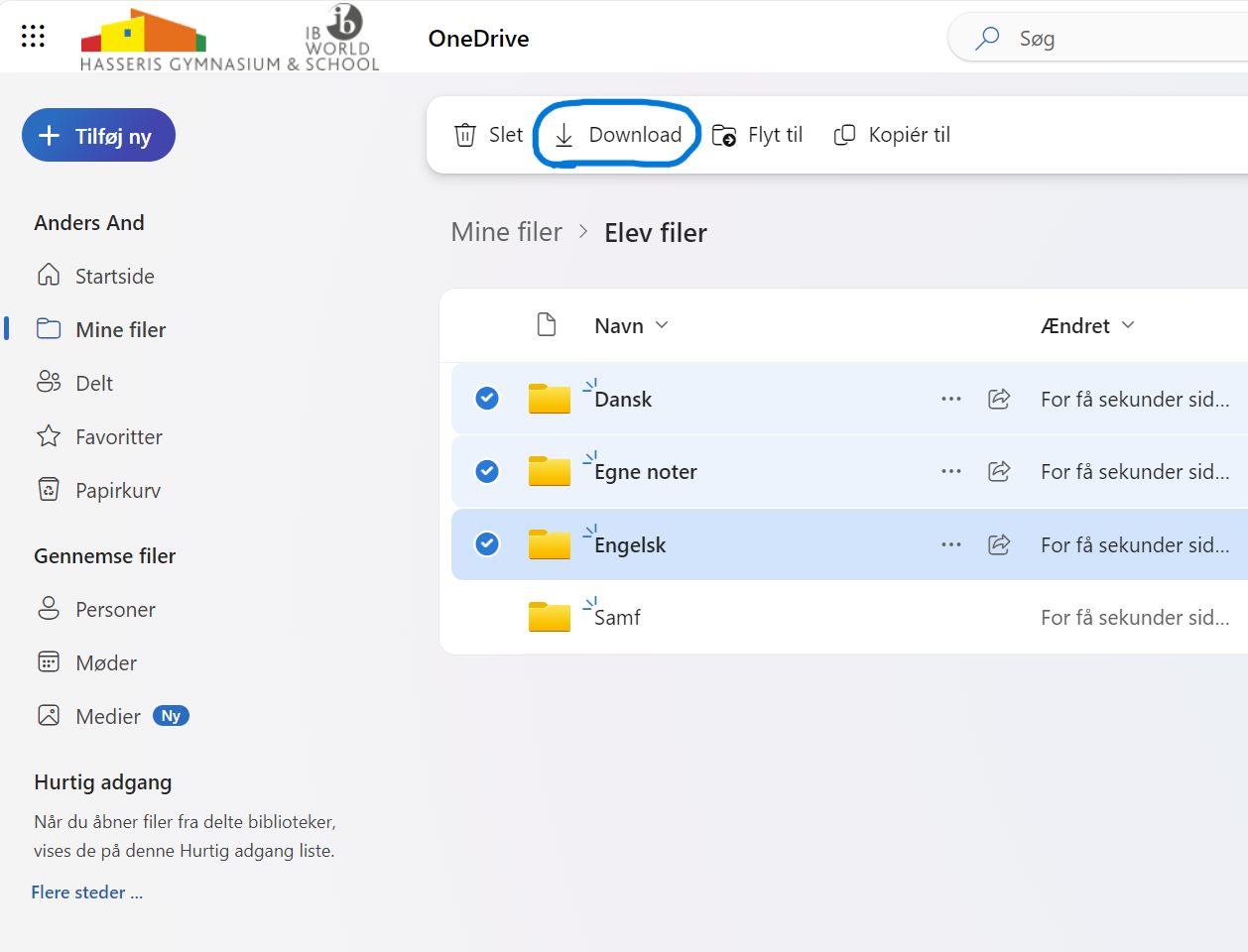
Select all or the files and folders on OneDrive that you want to back up and select "Download".
Backup via OneDrive Synchronization

If you have synced your OneDrive data to your local MAC or PC, you can make a backup by copying or creating a ZIP file of all the OneDrive files you have synced. Simply run it in the browser on your MAC or PC.

Select all files and folders you want to backup and copy them to your machine or to a USB stick.

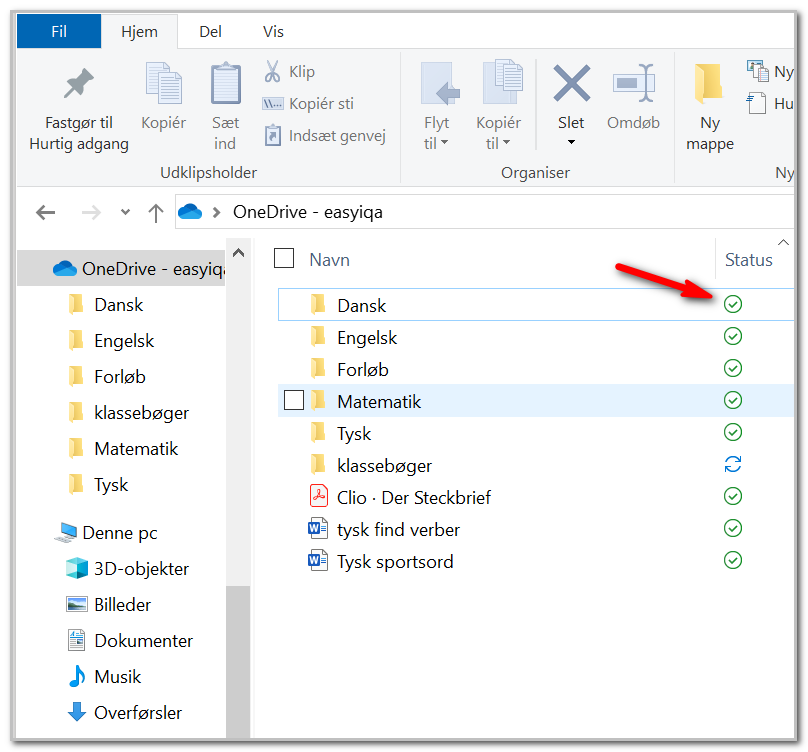
It's important that you check that all the files you want to backup exist on the local machine and are up-to-date. Check for "green" checkmarks on all files and folders before copying the files.
Was the guide useful?
Updated on 29/05/2024
Restore OneNote from backup on MacBackup of OneNote (Windows)

Write a reply Cancel reply

Your email address will not be published. Required fields are marked with *.

  • Dansk