
As of August 2025, you can now log in to Lectio without MitID, but this requires that you follow the guide below exactly and do not skip any steps.
You will end up logging in to Lectio using your school account (Local login) and a PIN that you create yourself during the process. MitID is required when creating the PIN, but you won’t need MitID after that.
Let’s get started.
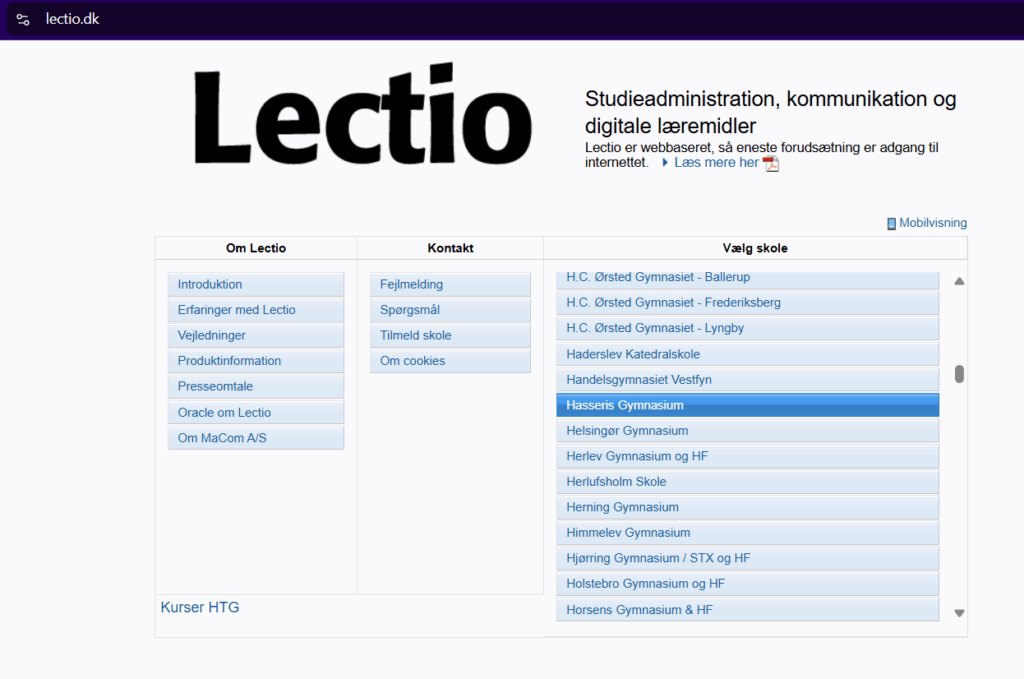
Open your browser and enter lectio.dk at the top
scroll down and select "Hasseris Gymnasium"
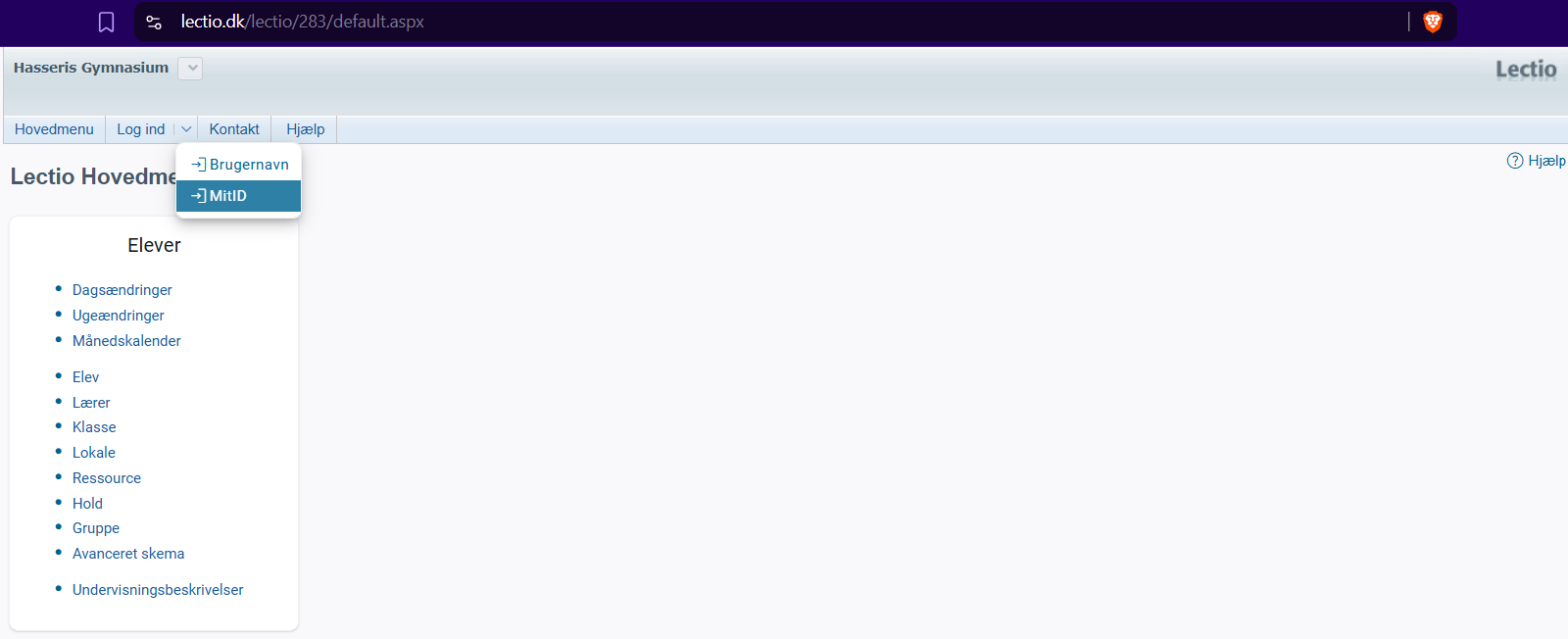
Now click the down arrow to the left of the "Login" menu item and select MyID"
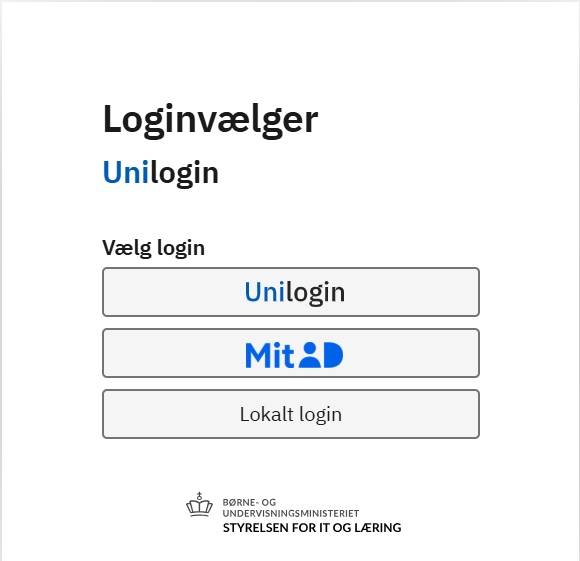
A dialog box with three options will now appear. You MUST select “Local login”.
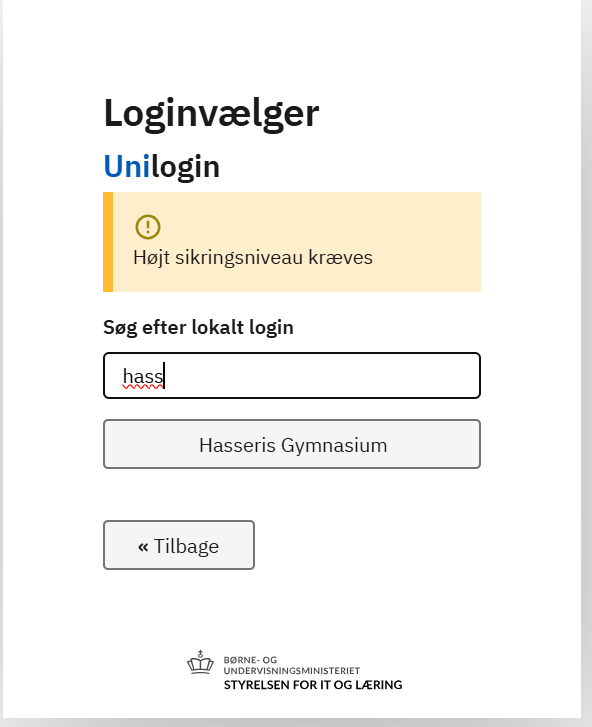
Now search for "Hasseris Gymnasium" or scroll down until it appears. Now click on "Hasseris Gymnasium"
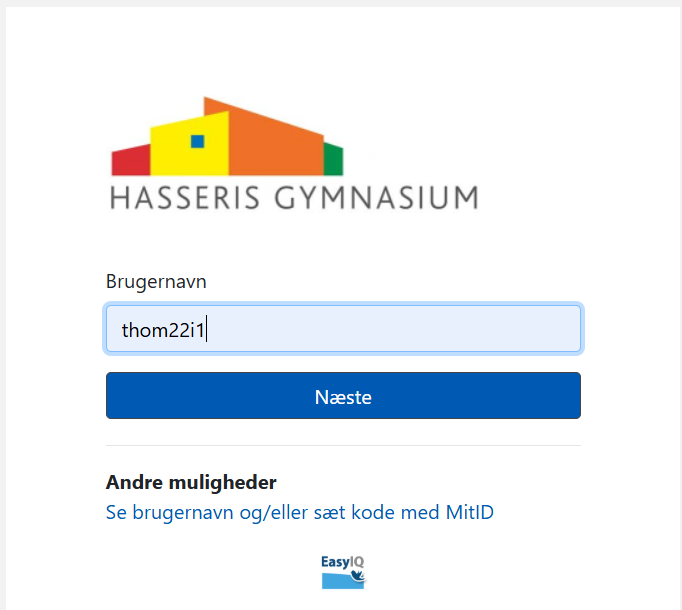
You can see that you have selected the correct login method "Local login" when you see our logo. Now enter your unilogin and click "Next"
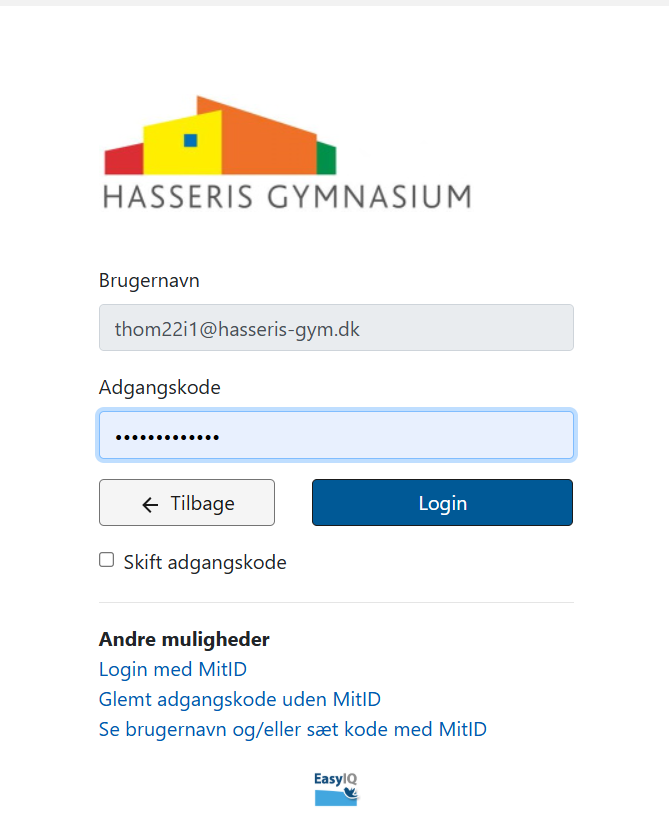
Now enter your password that you previously created on minkode.kodeskift.dk. click "Login"
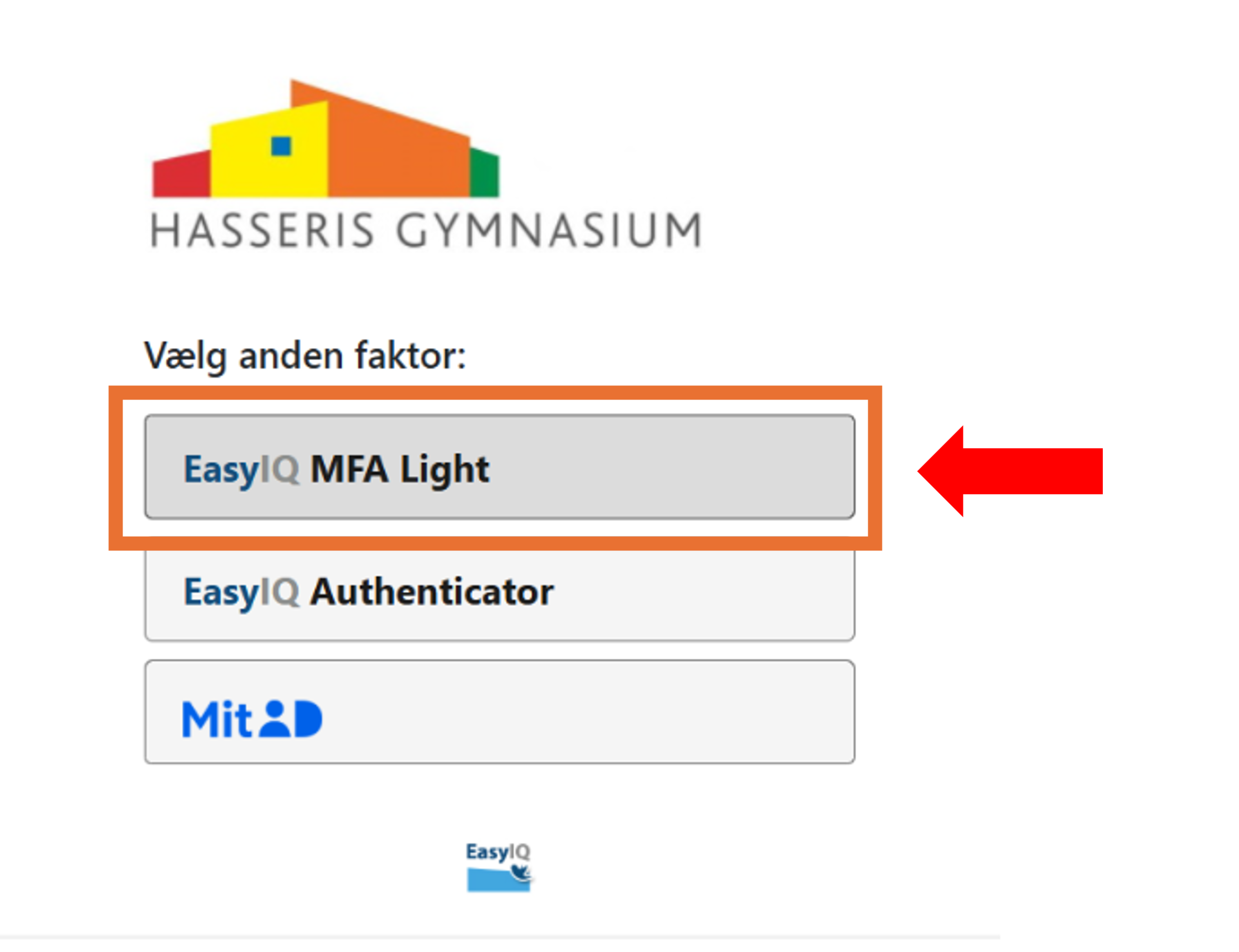
Now you need to create a PIN code that is used as a 2-factor login. It is required to log in to Lectio. Select "EasyIQ MFA Light"
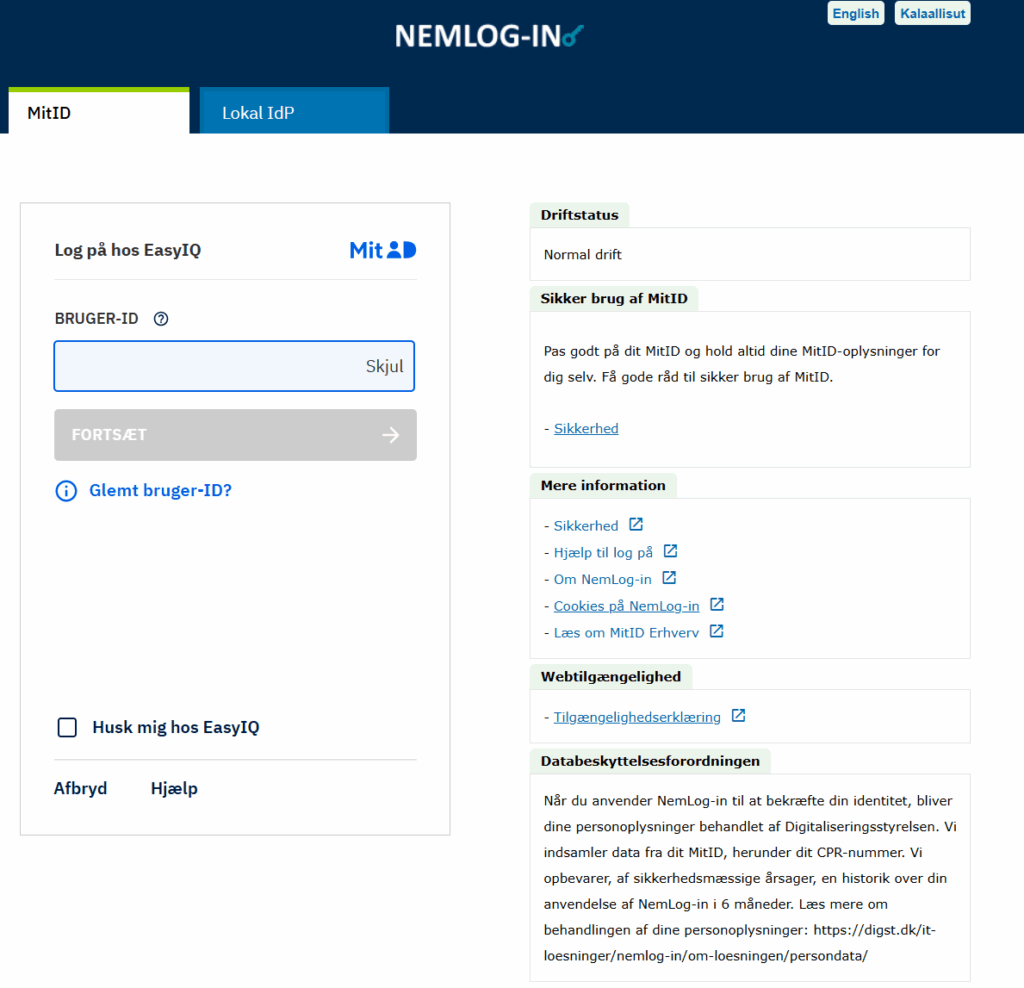
You will now be redirected to MyID, which is required for you to create a PIN code. Complete the login as you are used to.
Now you need to enter a 6-digit PIN code (NUMBERS ONLY) that you will use as a 2-factor when you log in to Lectio in the future. The PIN code only applies to the device you are logging in on, i.e. you need to create a PIN code for both computer and mobile if you want to use Lectio on it.
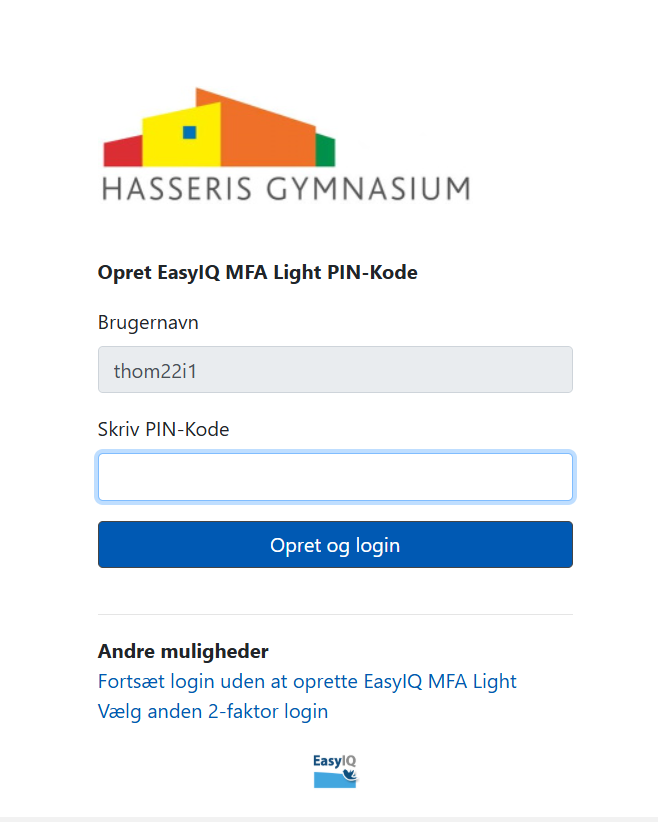
You are now being logged in to Lectio.
If, contrary to expectations, you encounter problems using the method described above, you can choose MitID as a workaround instead of “EasyIQ MFA Light” until the issue has been resolved by the IT department in O-14.
NOTE: It is not permitted to use MitID for exams, and you would be required to hand in your mobile phone before the exam begins, as MitID is typically installed on it.