Skip to content
IT help

IT help

IT help for students at Hasseris Gymnasium

  • Guides
    • Unilogin
    • Lectio
    • Print
    • WIFI
    • Maple
    • Backing up data
  • Frequently asked questions
  • Preparing your computer
  • My first day of school

New student

5
  • Log in to Lectio without MitID (required for exams)
  • Update your computer
  • Change / forgot password
  • MacBook automatic installation
  • MacBook or PC?

Local login

3
  • Log in to Lectio without MitID (required for exams)
  • Change / forgot password
  • What is Local login?

LECTIO

2
  • Log in to Lectio without MitID (required for exams)
  • Change / forgot password

PRINT

4
  • Pairing student cards with copiers
  • Student: Installing the print driver on MacBook
  • ELEV: Installing the print driver on Windows PC
  • I can't save my Maple task as PDF (MacBook)

WIFI

2
  • Log on to WIFI (Windows)
  • Log on to WIFI (MacBook)

Update your computer

2
  • Update your Windows PC
  • Update your MacBook

Microsoft 365

4
  • Microsoft Teams
  • Backing up OneNote on MacBook
  • Restore OneNote from backup on Mac
  • Microsoft 365

OneDrive

2
  • Unlink old school in OneDrive
  • OneDrive

Installation

4
  • Install Firmaportal MacBook
  • Install Firmaportal Windows PC
  • Install applications yourself - MacBook (EMERGENCY SOLUTION - not recommended)
  • Install programs yourself - Windows PC (EMERGENCY SOLUTION - not recommended)

Maple

4
  • Installing Maple 2025 Mac/PC
  • Maple activation
  • I can't save my Maple task as PDF (MacBook)
  • Maple - Find lost files

Backing up data

4
  • Backup of OneNote (Windows)
  • Backing up OneNote on MacBook
  • Restore OneNote from backup on Mac
  • Backup of OneDrive

My first day of school

3
  • Log in to Lectio without MitID (required for exams)
  • Log on to WIFI (MacBook)
  • Log on to WIFI (Windows)
  • Home
  • Docs
  • Backing up data
  • Backing up OneNote on MacBook
View Categories

Backing up OneNote on MacBook

2 min. estimated reading time

If you have OneNote installed on your MacBook and you need to back it up, this is the guide you need to follow. It's a more technical procedure than on a PC, but if you follow the steps below, anyone can do it. 

You will need a USB stick to make your backup. 

Step 1: Open the OneNote APP
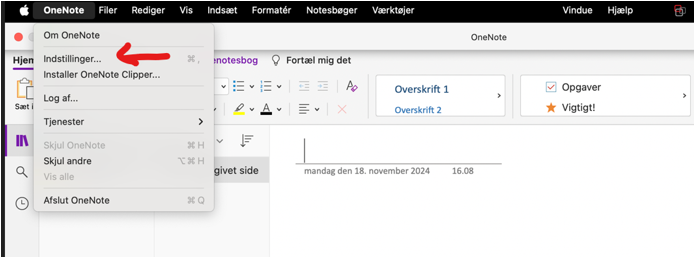
Step 2: Go to Settings
Click 'OneNote' in the menu bar at the top next to the Apple logo and select 'Preferences'.
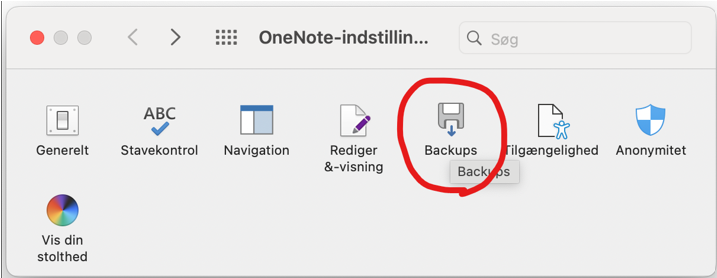
Step 3: Select Backups

Go to the 'Backups' tab (the icon looks like a floppy disk).
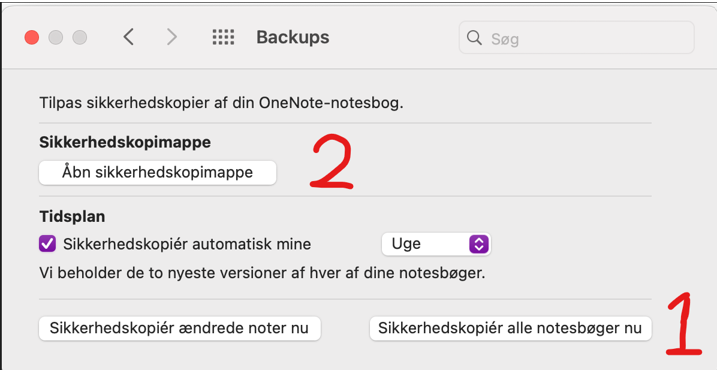
Step 4: Take a manual backup

Click “Back up all notebooks now” (1) to take an immediate backup.

You may want to click on “Open backup folder” (2) instead of navigating as described in step 5.
Step 5

  • Plug the USB memory stick into your Mac.
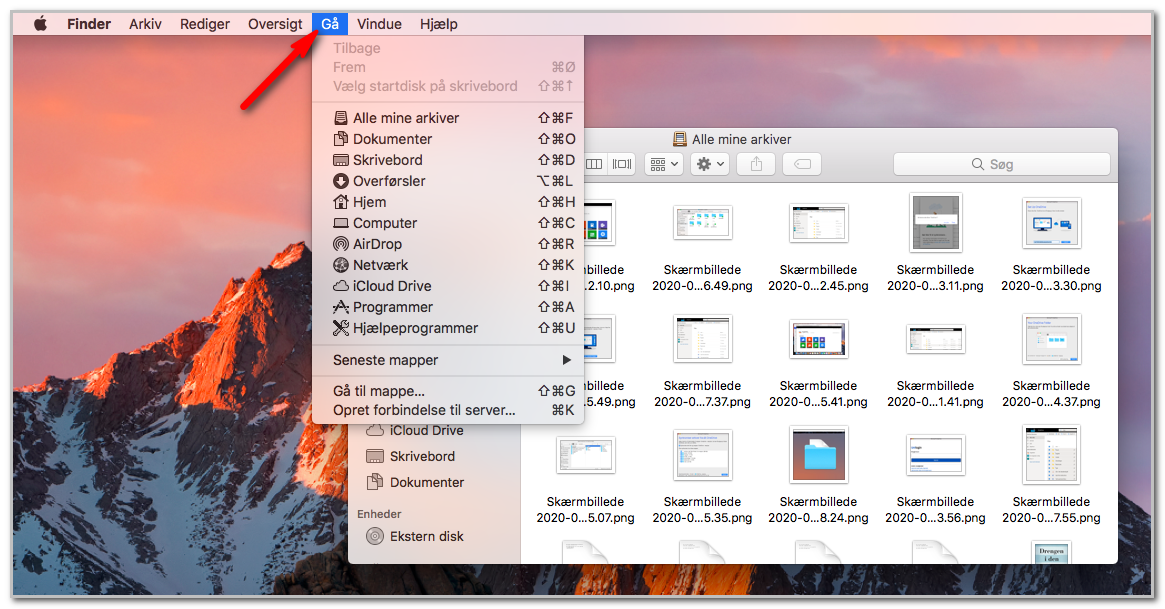
  • Open Finder and select Go.
Finder_and_gaa.png
  • Here you select the Go to folder function...
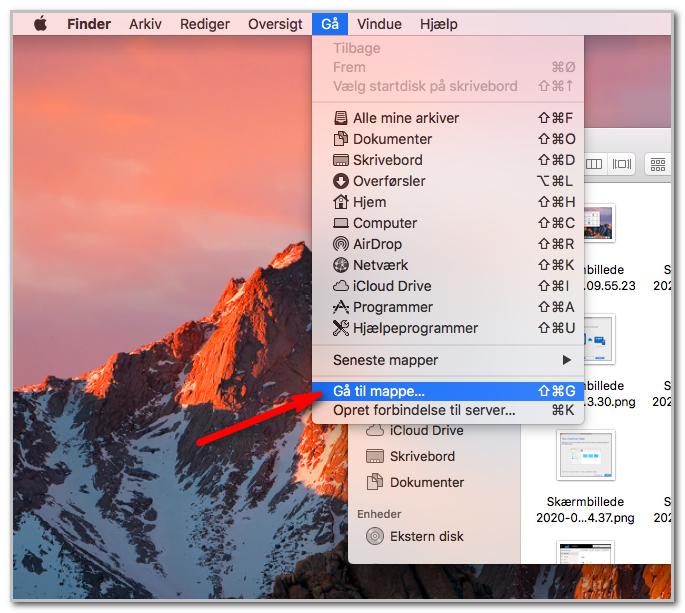
gaa_to.png
  • Now type the following in the search field ~/Library/ (Tilde, which is the wave character, must be included)
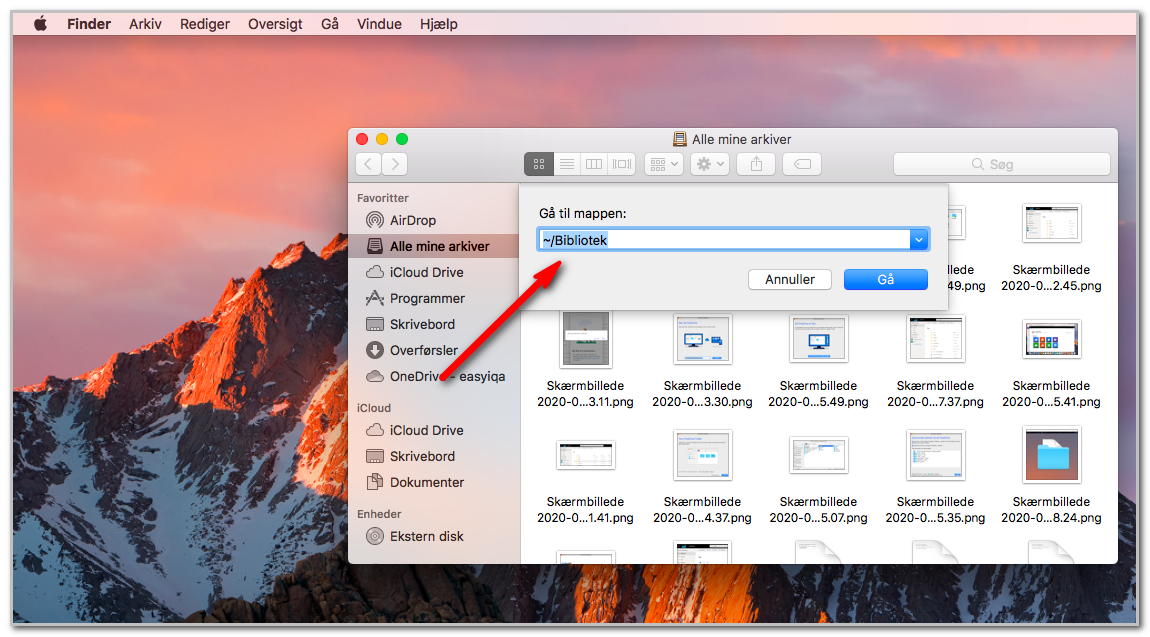
library.png
  • From here, click through quite a few folders in the following order:
    • Containers /com.microsoft.onenote.mac / Data / Library / Application Support / Microsoft User Data (If you choose to copy this "path", paste it without spaces in the "go to folder" after ~/Library/)
  • NOTE! As shown in the image below, select the Microsoft User Data folder and not the Microsoft OneNote folder. 
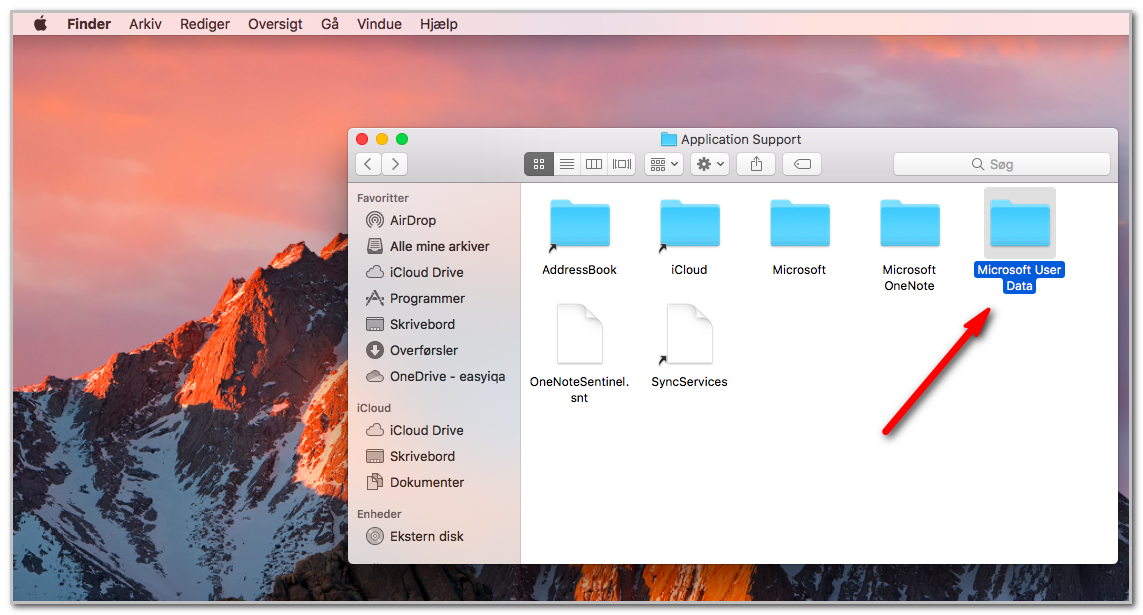
folder_selection.png
  • You are now in the OneNote folder that you need to copy to your USB stick. 
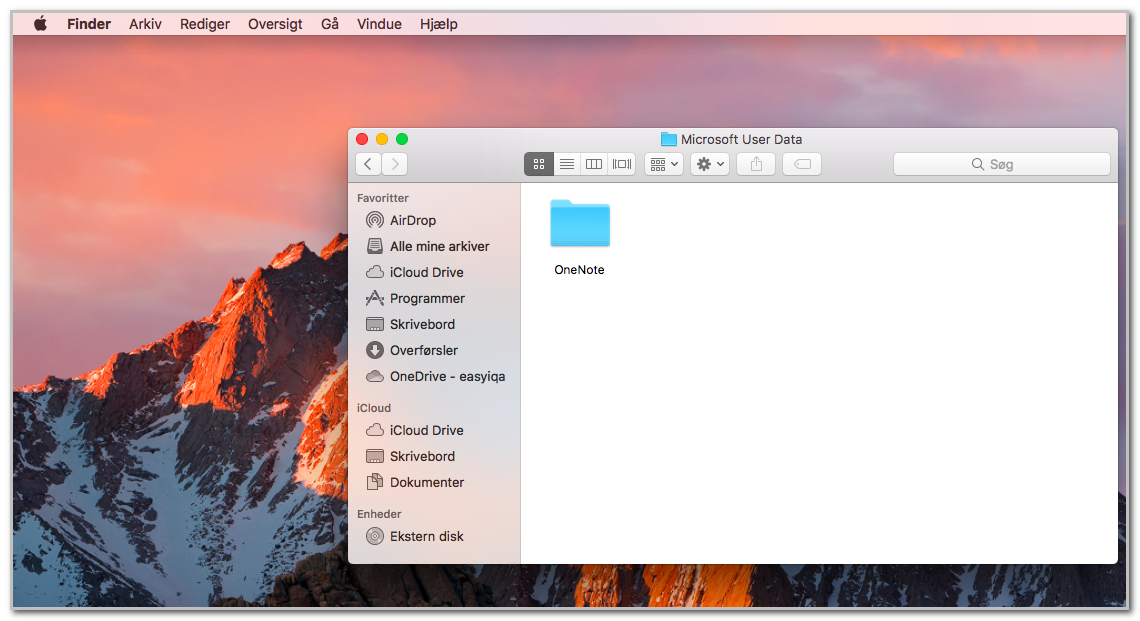
Onenote.png
  • Open a new Finder window and drag-and-drop the folder onto your USB stick in the new Finder window. 
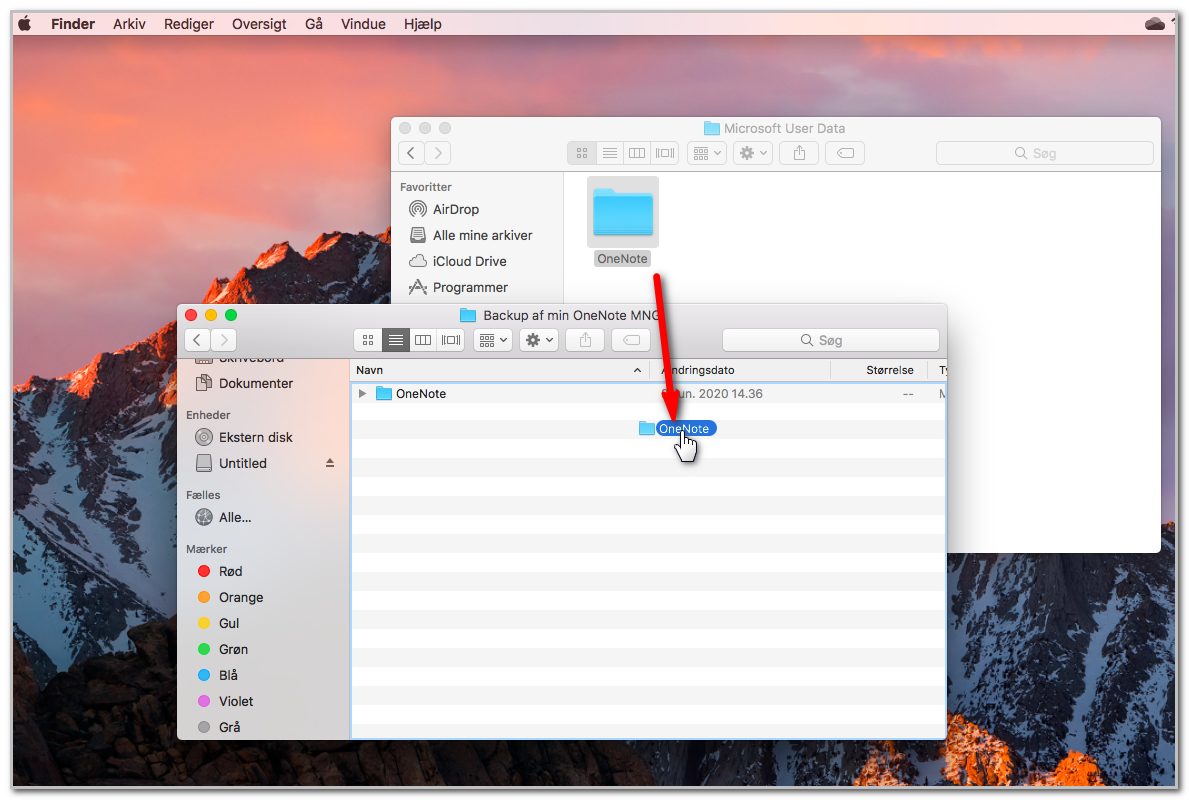
drag_and_drop.png

Your OneNote is now copied to your USB stick. 

To open your OneNote file on a new computer or after a change of school, where you also change Office365 license to your new organization, follow the instructions below. 

How to restore OneNote on your Mac. 

Was the guide useful?
Updated on 26/05/2025
Backup of OneNote (Windows)Restore OneNote from backup on Mac

Write a reply Cancel reply

Your email address will not be published. Required fields are marked with *.

  • Dansk