
This guide requires that you have followed the procedure on how to backup OneNote for Mac.
If you change schools/organizations, your access to Office365 will be closed. When you activate a new license at a new school or organization, you can restore the saved OneNote after activation.
This procedure can also be used when you switch to a new computer and have saved from the old one.
- Insert the USB stick where you saved your OneNote into your computer.
- Now log in to Office365 with the login you have from your new organization.
- Open the OneNote app and make sure it is empty. It should be freshly installed after your change of organization.
- Open Finder and select Go.
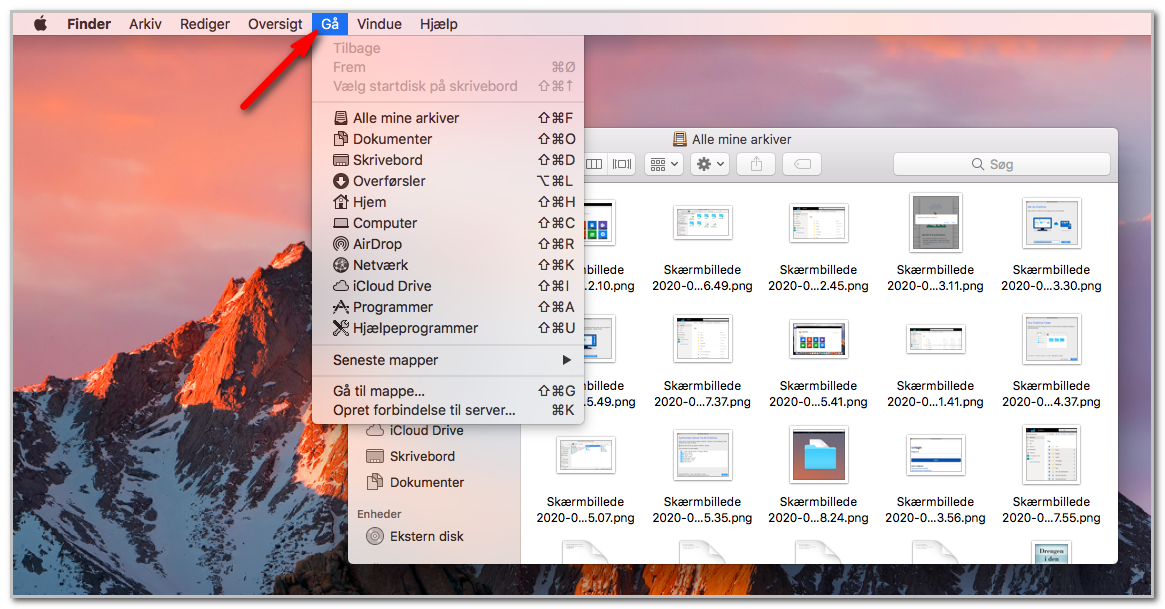
- Here you select the Go to folder function...
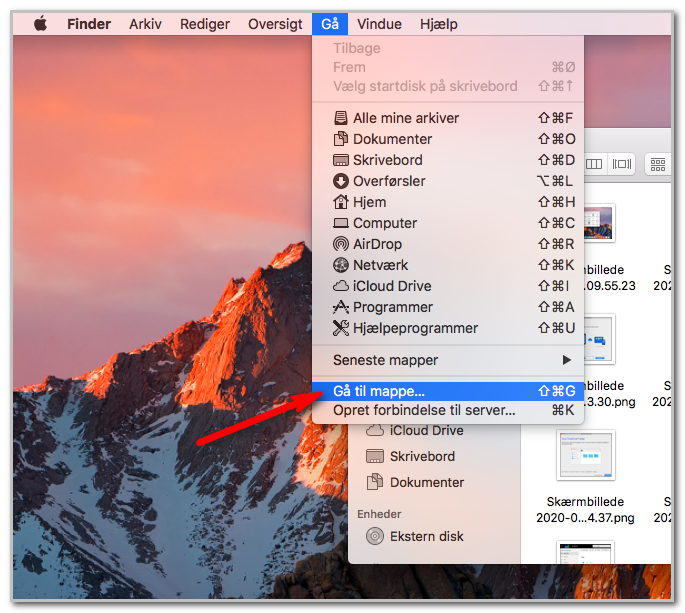
- Now type the following in the search field ~/Library/ (Tilde, which is the wave character, must be included)
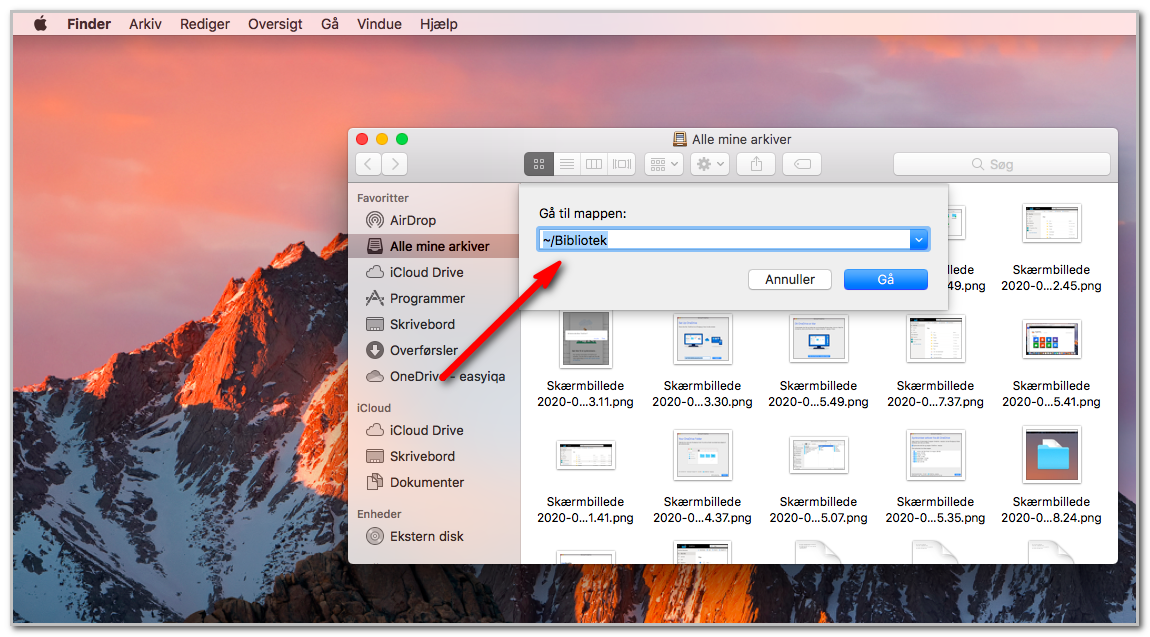
- Then click through a number of folders in the following order:
Containers / com.microsoft.onenote.mac / Data / Library / Application Support / Microsoft User Data
NOTE! As shown in the image below, select the Microsoft User Data folder, not the Microsoft OneNote folder.
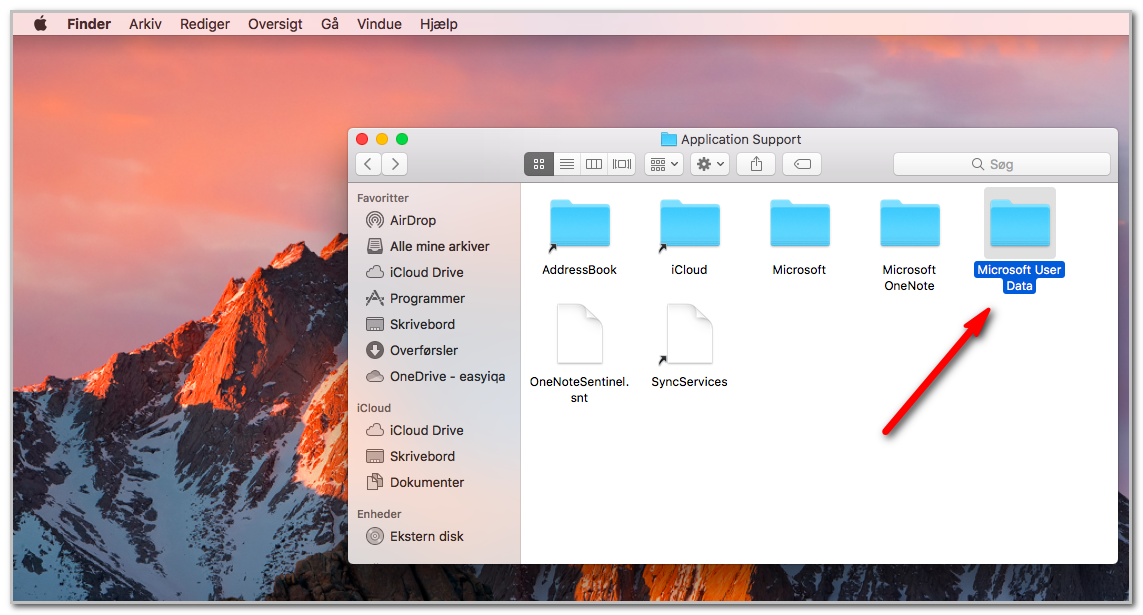
- You are now in the OneNote folder. You now need to delete the existing file from the folder.
- Once deleted, retrieve the saved OneNote from your USB stick and place it in this folder where you just deleted.
- You can now open your OneNote and check that all files have been transferred.