It's important that you follow the guide from start to finish, otherwise you risk having to start all over again.
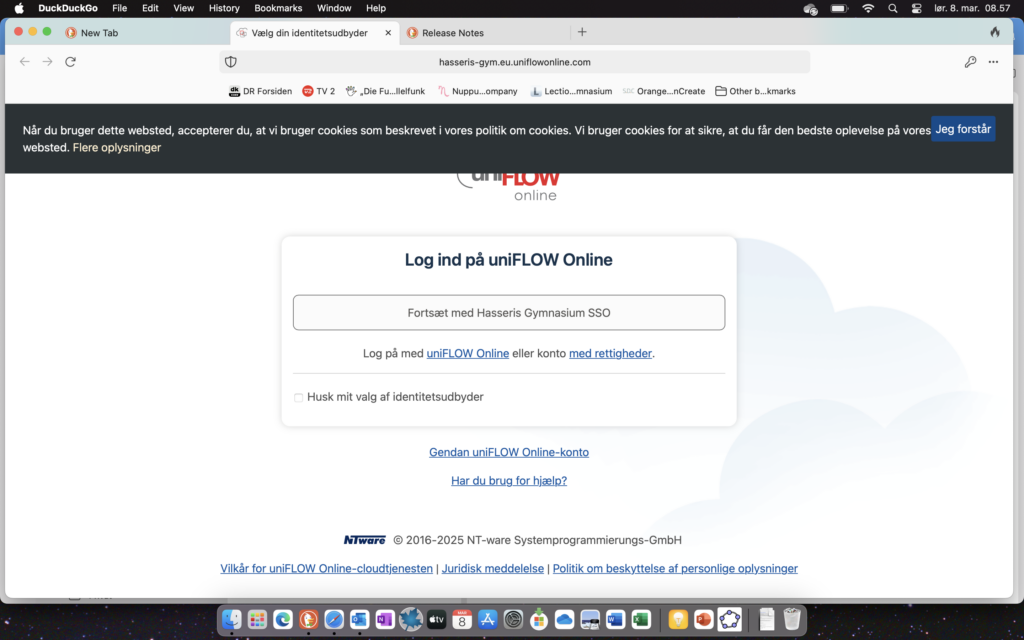
Open your browser, preferably "Microsoft Edge" alternatively Safari or Google Chrome.
go to URL https://hasseris-gym.eu.uniflowonline.com
Log in with your school email and password.
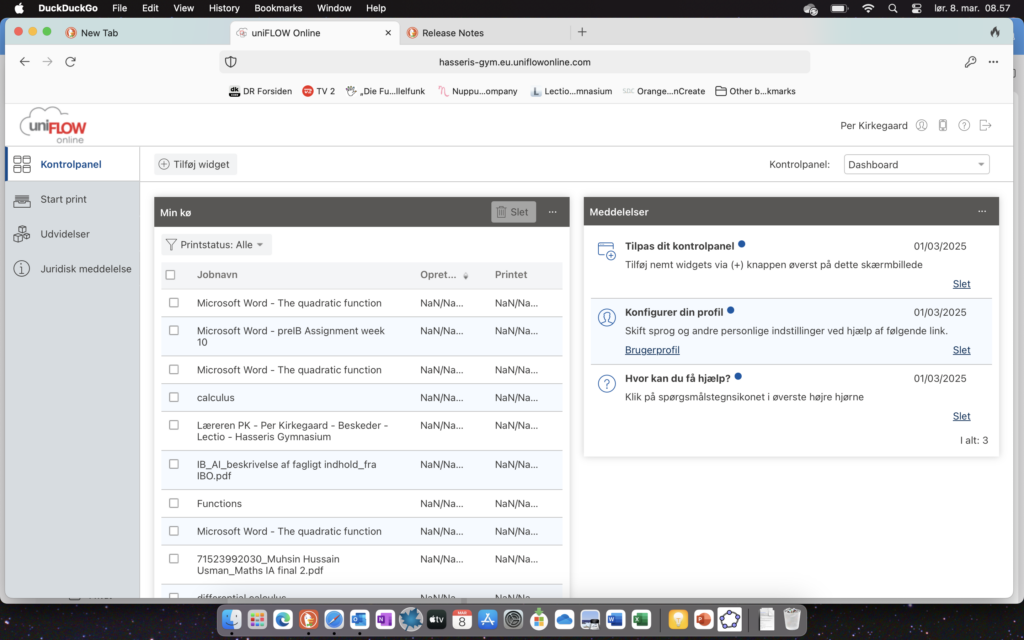
You can start by finding the PIN code that we will later use to pair your student card with the copiers.
Under the menu item "Control panel", scroll down to "Identities" and under PIN, click the 3 dots next to them and click "Show PIN". REMEMBER the PIN code you will need later.
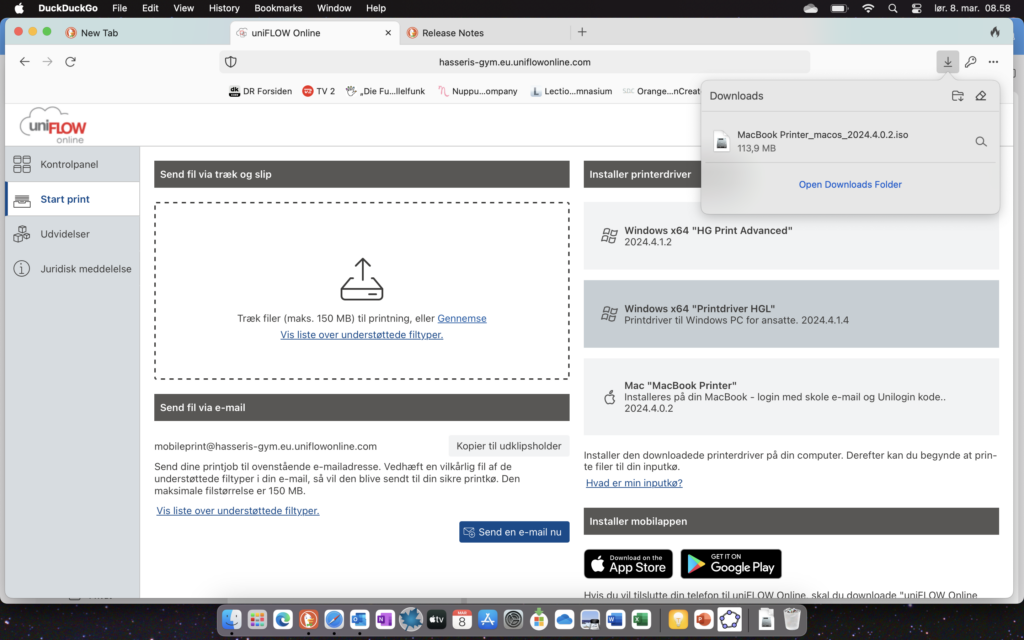
Now click on the menu item "Start print" and under "Install print driver" select "Mac "Macbook Printer"". When the print driver is downloaded, open the program.
You will then see a folder on your desktop.
Double click on the folder on your desktop "SmartClientforMac".
Then click on "SmartClientforMac.pkg" which will start the prindriver installation.
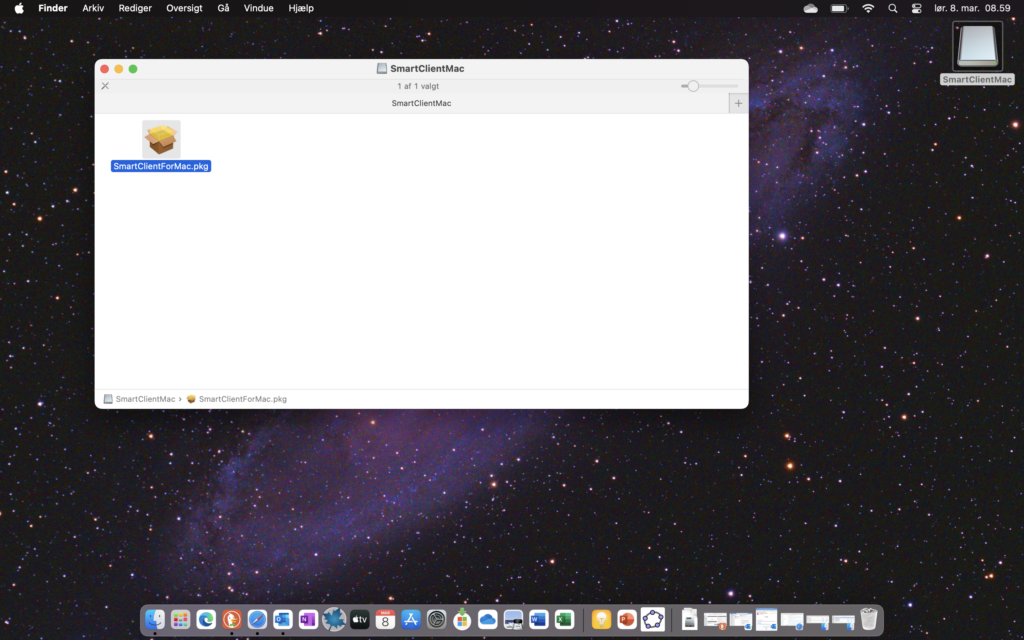
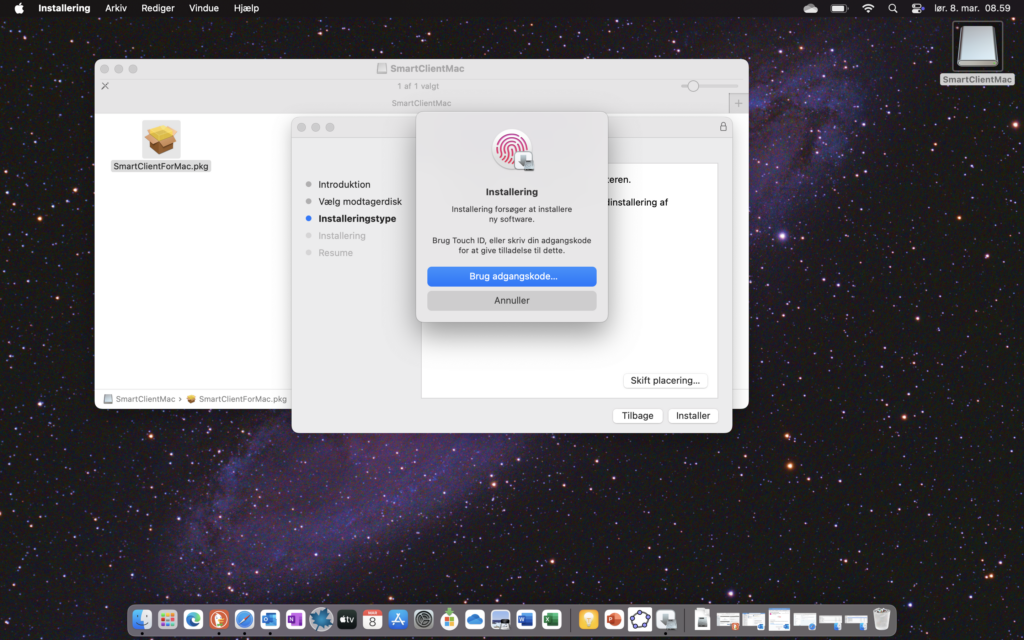
You may be asked to authorize the installation, either using touch or your MacBook passcode.
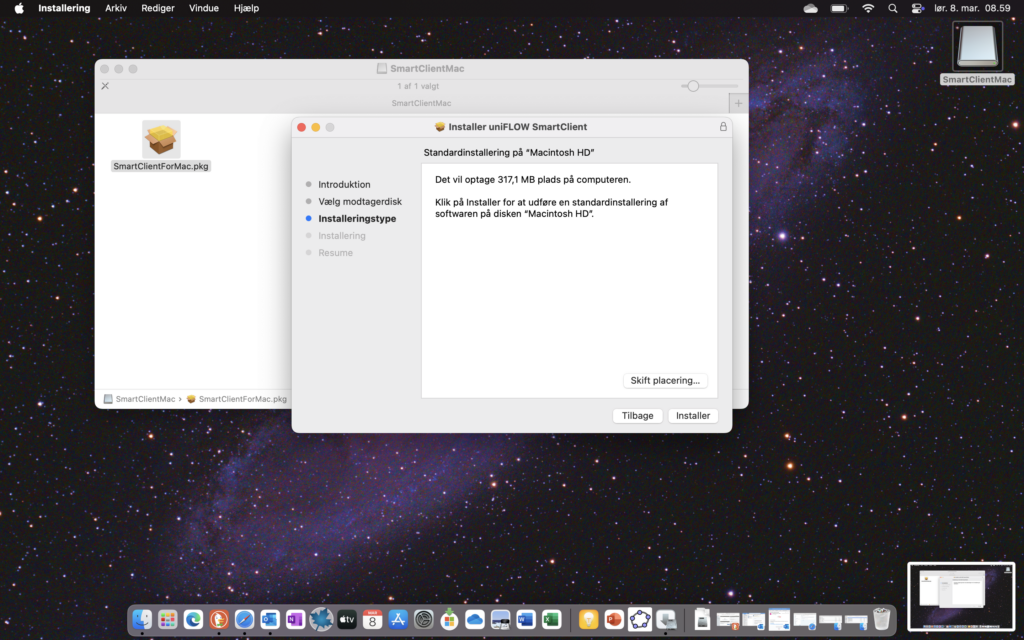
During installation, do not change anything in the setup but click "Install".
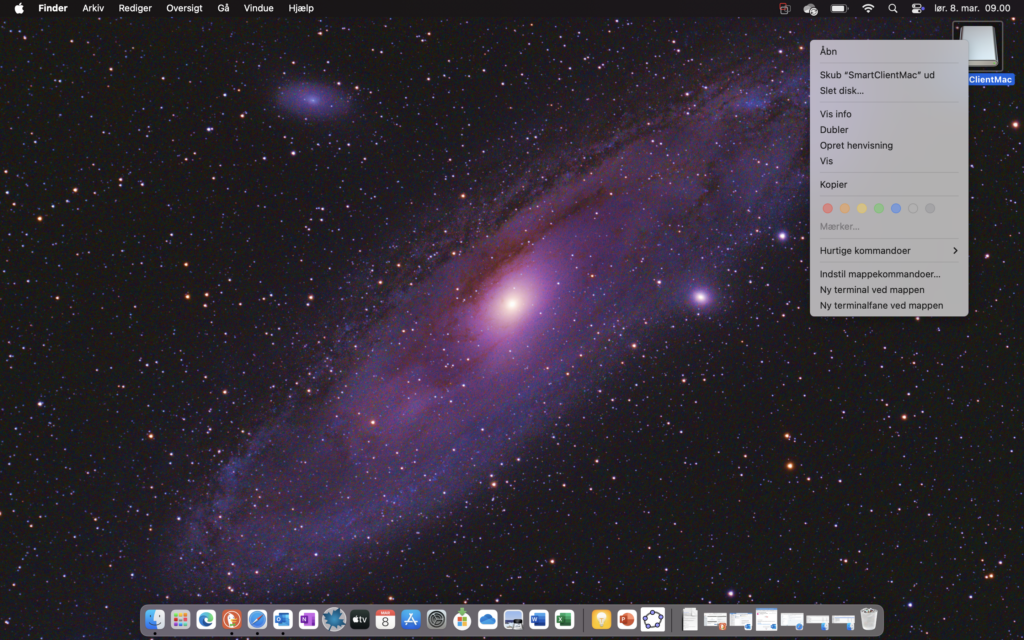
Once the installation is complete, click on the installation folder on your desktop and select "Eject SmartClientMac".
Next, restart your MacBook.
After restarting, check that the print driver has started up and is correctly configured. At the bottom it is shown as the first icon from the left.