
The Company Portal is used to register your MacBook with Hasseris Gymnasium. Once registration is complete, the school's required software can be automatically installed and updated.
We recommend that students complete the registration themselves—with help from a parent, if needed. That way, students will be familiar with the process and know where to find the Firmaportal if they need it later.
Before You Begin
Make sure to do the following:
- The MacBook is connected to the Internet.
- The MacBook is plugged in.
- You know the password for your user account on your MacBook.
- Your user account on the MacBook has administrator privileges.
- You know the login information for your school account.
- Do not close your MacBook while the registration and installation are in progress.
- Download the Company Portal file via this link CompanyPortal-Installer.pkg
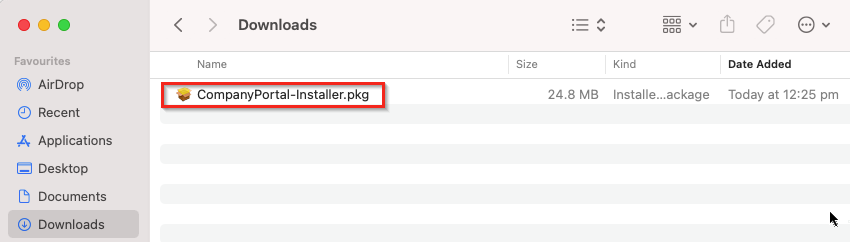
Install the Company Portal
- Follow the installation program:
- Select " Continue " on the Introduction page.
- Read the license terms, then select Continue.
- Select "Agree " to accept the license terms.
- Select Install.
- Enter your MacBook password or authenticate with Touch ID.
- Select " Install Software."
- Wait until the installation is complete.
Once the installation is complete, you can close the installer.
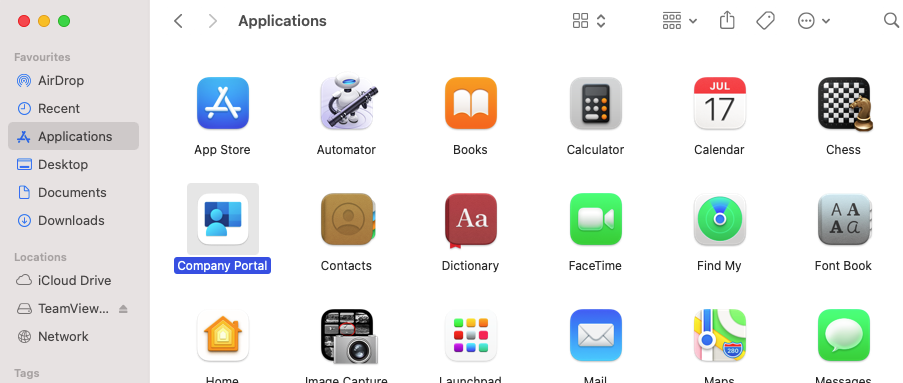
Open the Company Portal
Open Finder and select " Applications " from the menu on the left.
Find the Firmaportal app and double-click it to open it.
You can also open Spotlight by pressing Command + Space and then searching for Firmaportal.
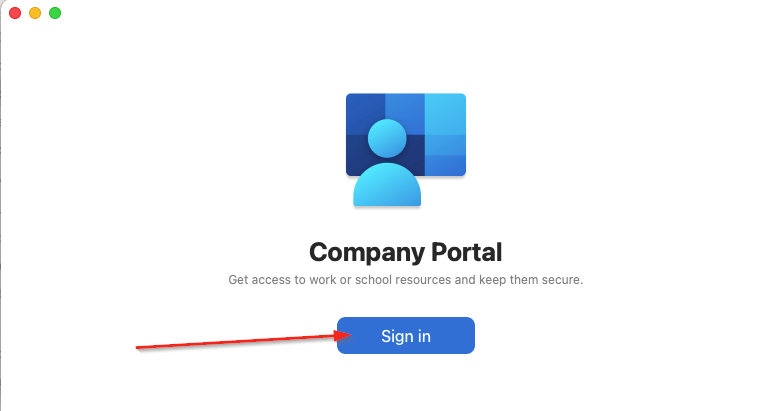
Log in to your school account
Select " Log In " in the Company Portal.
Log in using the school account—the local login you found in step 2. Do not log in using your personal Apple account.
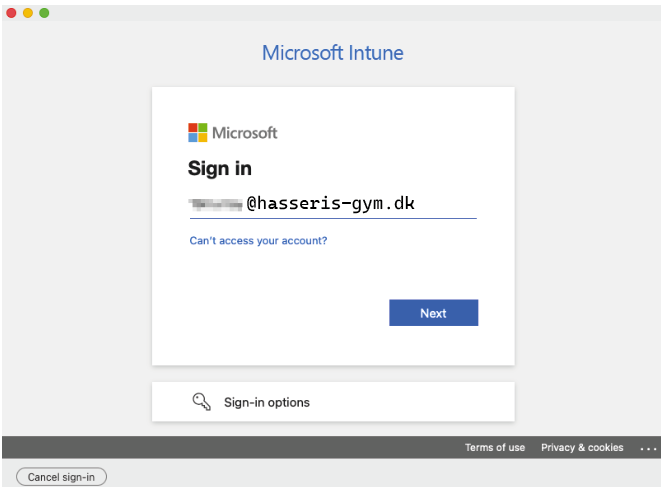
After you have logged in correctly, click begin
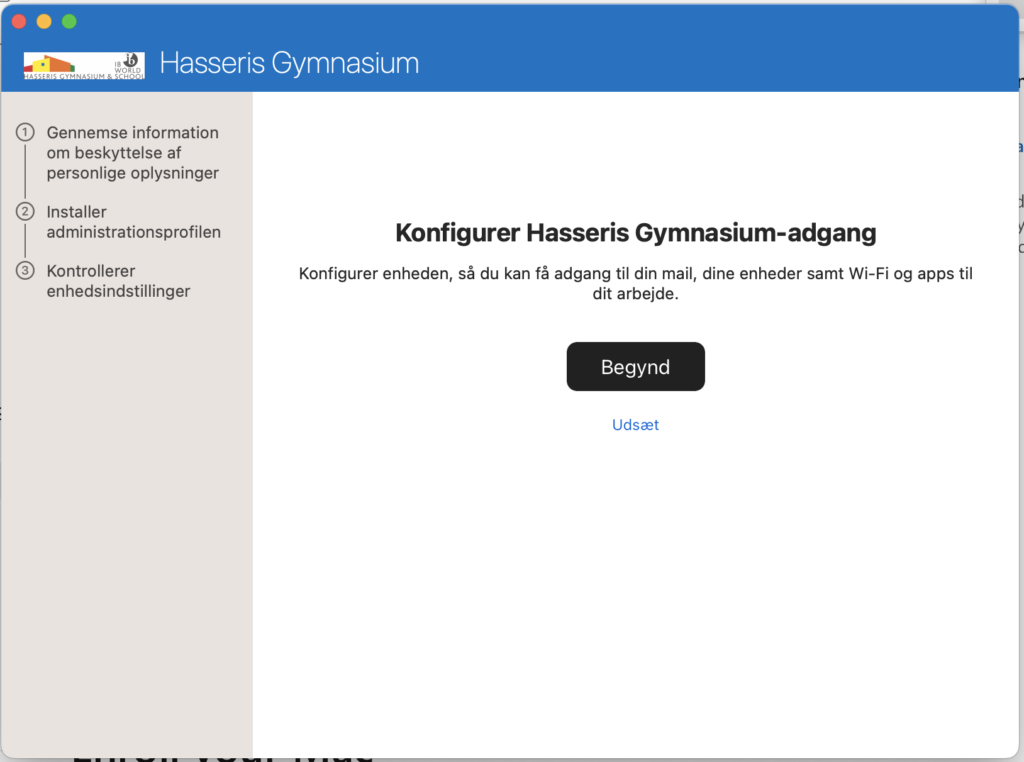
Review the privacy information and click Continue.
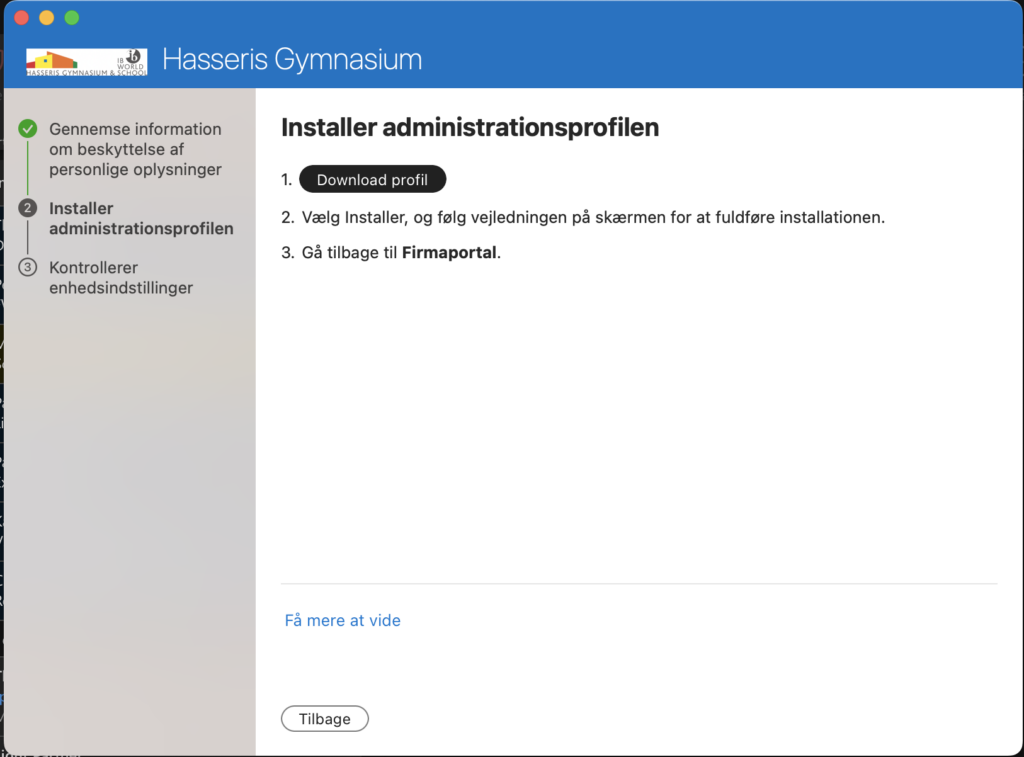
Download the administration profile
Select " Download Profile " in the Company Portal.
The MacBook's System Preferences should now open automatically and display the downloaded management profile.
If System Preferences does not open automatically, go to:
→ System Preferences → General → Device Management
You may need to scroll down in the menu under "General" to find " Device Manager."
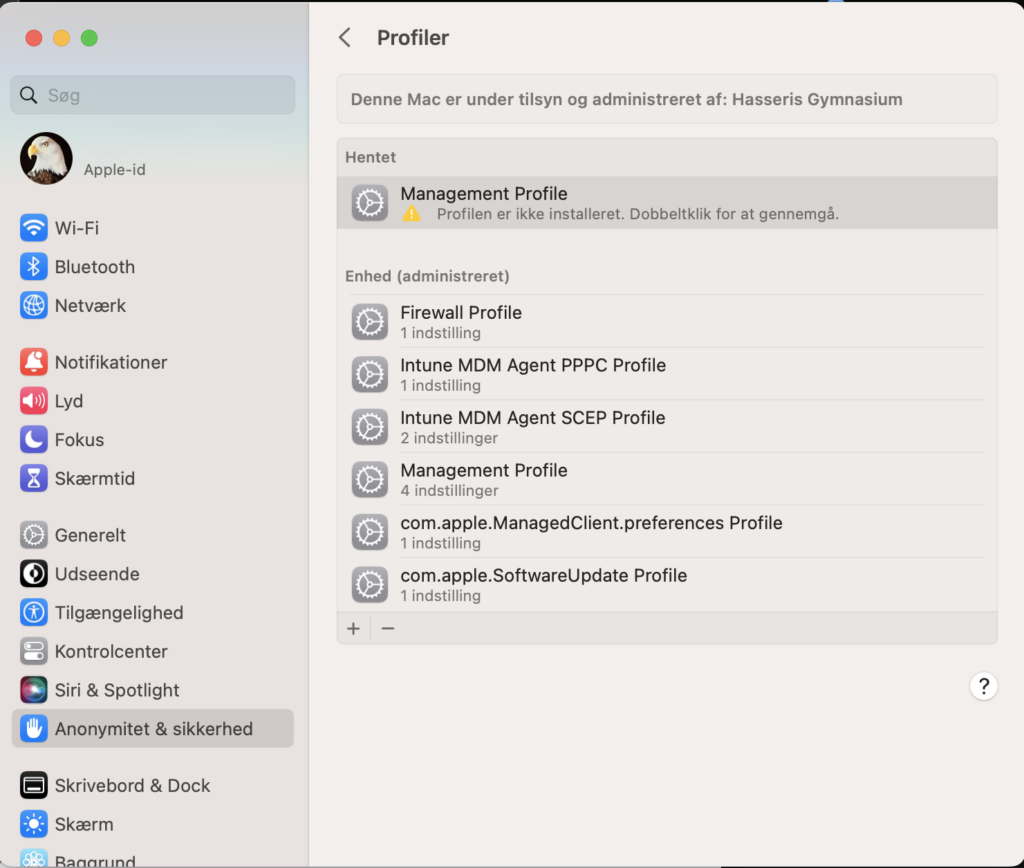
Install the administration profile
Under "Download," open the profile named " Management Profile " or " Administration Profile."
Verify that the profile is from Microsoft, and then select:
- Install
- Reinstall to confirm
- Enter the password for your MacBook
- Select " Sign Up"
Please wait while the administration profile is being installed.
Return to the Company Portal
Once the profile is installed, go back to the Firmaportal app.
Verify that a green check mark appears next to the administration profile installation.
If Firmaportal indicates that you need to make changes to your MacBook, follow the on-screen instructions. Then select " Try Again" so that Firmaportal can check your MacBook again.
Registration is complete when Firmaportal shows that the MacBook is ready, and you can select " Done."
Wait for the school's programs
Once enrollment is complete, the MacBook will automatically begin downloading the school's required academic software.
Installation may take up to an hour. The programs may not necessarily be installed at the same time.
While the installation is in progress:
- Leave your MacBook turned on.
- Leave it plugged in.
- Make sure it remains connected to the Internet.
- Do not close the lid on your MacBook.
You may leave Firmaportal open while the programs are being installed.
If the programs are not installed
Open the Company Portal and select your MacBook under " Devices."
Then select " Check Status " or " Try Again." Afterward, leave your MacBook turned on and connected to the Internet.
If Firmaportal displays an error that you cannot resolve on your own, take a screenshot of the error message and contact the school's IT support.