
Skip to content
IT help

IT help

IT help for students at Hasseris Gymnasium

  • Guides
    • Unilogin
    • Lectio
    • Print
    • WIFI
    • Maple
    • Backing up data
  • Frequently asked questions
  • Preparing your computer
  • My first day of school

New student

5
  • Log in to Lectio without MitID (required for exams)
  • Update your computer
  • Change / forgot password
  • MacBook automatic installation
  • MacBook or PC?

Local login

3
  • Log in to Lectio without MitID (required for exams)
  • Change / forgot password
  • What is Local login?

LECTIO

2
  • Log in to Lectio without MitID (required for exams)
  • Change / forgot password

PRINT

4
  • Pairing student cards with copiers
  • Student: Installing the print driver on MacBook
  • ELEV: Installing the print driver on Windows PC
  • I can't save my Maple task as PDF (MacBook)

WIFI

2
  • Log on to WIFI (Windows)
  • Log on to WIFI (MacBook)

Update your computer

2
  • Update your Windows PC
  • Update your MacBook

Microsoft 365

4
  • Microsoft Teams
  • Backing up OneNote on MacBook
  • Restore OneNote from backup on Mac
  • Microsoft 365

OneDrive

2
  • Unlink old school in OneDrive
  • OneDrive

Installation

4
  • Install Firmaportal MacBook
  • Install Firmaportal Windows PC
  • Install applications yourself - MacBook (EMERGENCY SOLUTION - not recommended)
  • Install programs yourself - Windows PC (EMERGENCY SOLUTION - not recommended)

Maple

4
  • Installing Maple 2025 Mac/PC
  • Maple activation
  • I can't save my Maple task as PDF (MacBook)
  • Maple - Find lost files

Backing up data

4
  • Backup of OneNote (Windows)
  • Backing up OneNote on MacBook
  • Restore OneNote from backup on Mac
  • Backup of OneDrive

My first day of school

3
  • Log in to Lectio without MitID (required for exams)
  • Log on to WIFI (MacBook)
  • Log on to WIFI (Windows)
  • Home
  • Docs
  • PRINT
  • Pairing student cards with copiers
View Categories

Pairing student cards with copiers

< 1 min read

Find the nearest copier

Place your student card on the red circle

enter your pin code

click on register map
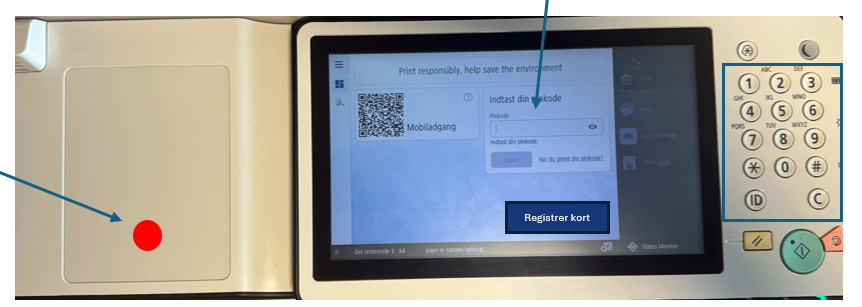
You can now log in and out by placing your student card on the red circle. You can also press ID which will also log you out.

Was the guide useful?
Updated on 19/03/2025
I can't save my Maple task as PDF (MacBook)Student: Installing the print driver on MacBook
  • Dansk