
Register your computer for Intune - step by step
Intune makes it easy for you to access and install the programs you need in high school. Follow this guide and you'll be up and running in no time:
Step 1: Register your Windows PC with Intune
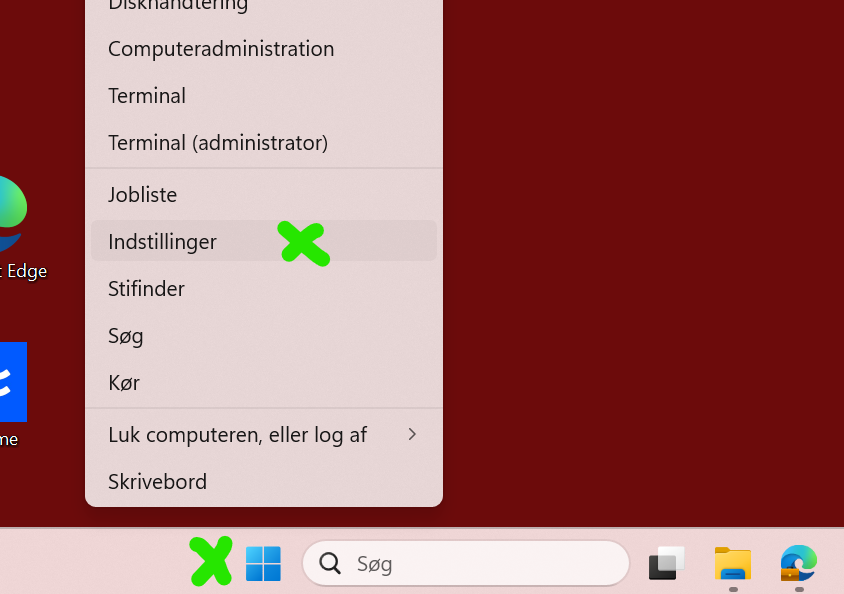
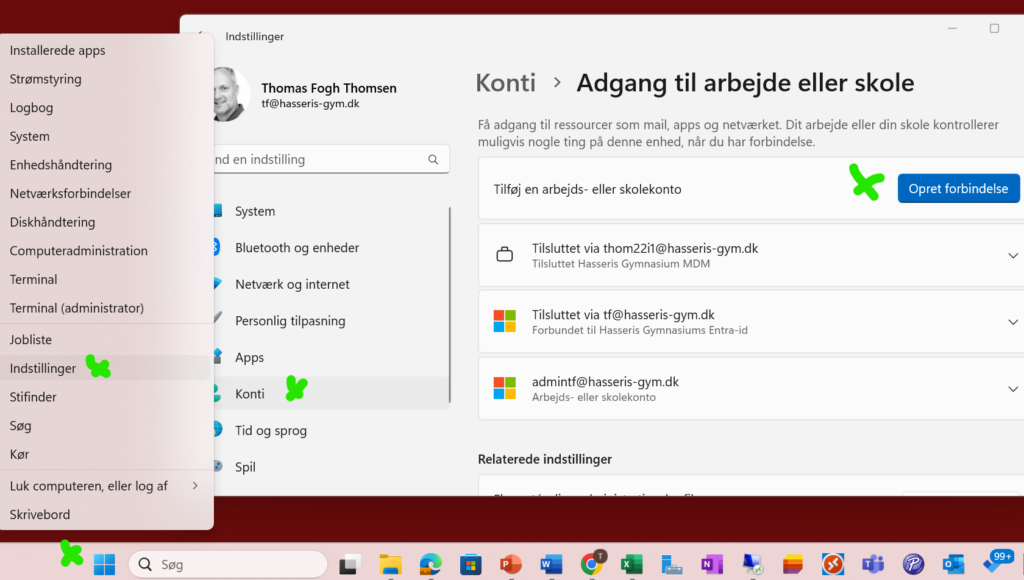
- Right-click on the Windows icon at the bottom of the menu bar and select the "Settings" menu item
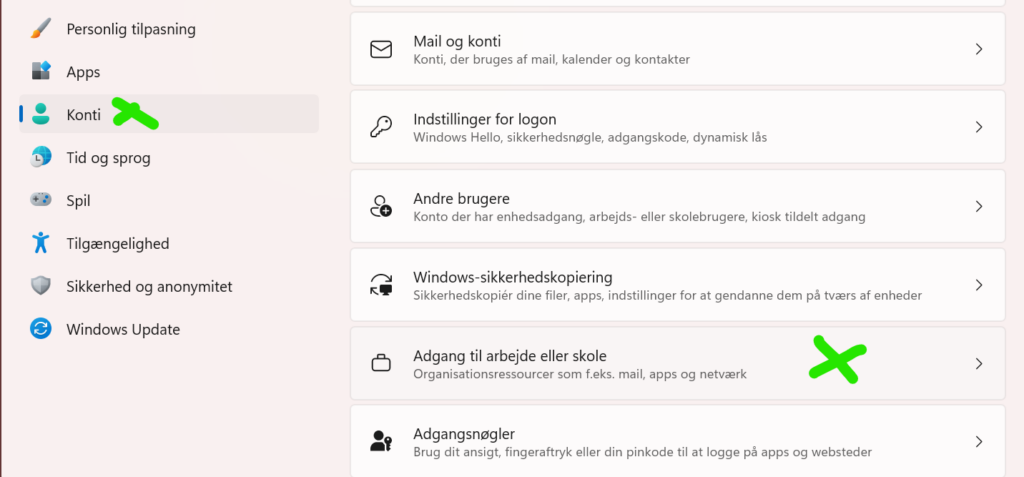
- Select "Accounts" - and then "Access to work or school"
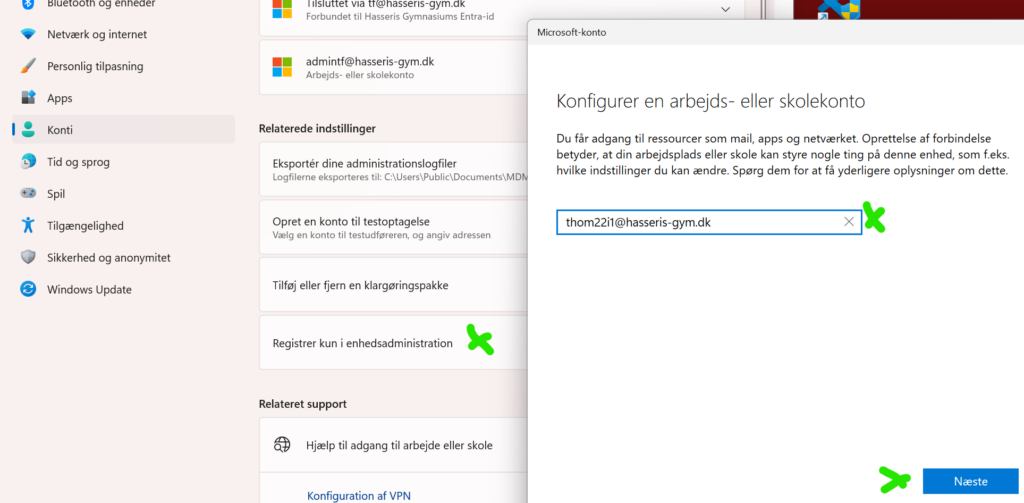
- Select "Register in device management only"
- Enter YOUR “Local login” and click Next, then enter your “Local login” password and click “Log in”
- Select "Yes" in the next dialog and wait for us to register your device.
- Click "Understood" and restart your PC.
IMPORTANT: If you have a VPN on your computer, you must enter the URL for the MDMN server manually: enrollment.manage.microsoft.com
Step 2: Under accounts select "Add a work or school account"
- Click on "Connect"
- Enter your school email address (Local login) and click Next
- Enter your password and follow the guide to the end.
- When you're done, restart your PC
Step 3: Wait with your computer on
- Your computer will now start downloading the programs you need for school in the background. This can take up to an hour. (do not close the computer while this is happening)
Done!
Your computer is now enrolled in Intune and you're ready to use the programs you need for your classes.
Step 4: Go back to "Prepare computer" and continue from step 4
Are you having problems?
If you have problems registering your computer, please contact IT at tf@hasseris-gym.dk /30550502 (we are very busy during the start-up period, so it is preferable that you write an email first).